Free Shipping
For: operations and marketing staff configuring the free-shipping threshold
What you'll learn: how to find the Free Shipping page, set the single cart-total threshold that unlocks free shipping, and read the report that shows how many orders qualified.
This is a how-to guide for the dashboard, not the API. If you're building an automated shipping system instead, see the Usage Guide.
Before you start#
You'll need an admin login for your store. Free Shipping lives under Promotions in the left navigation — it is not a separate top-level menu item. If you don't see the Promotions section, ask your administrator to grant you the right permissions.
There is just one free-shipping setting for the whole store: a single cart-total threshold. Orders at or above that amount get free shipping; orders below it are charged for shipping as usual. There are no separate rules, tiers, customer segments, or per-rule on/off switches to manage — just the one number.
Throughout this guide, screenshots use a demo store — the names and amounts shown are fake.
1. Open the Free Shipping page#
Log in to the admin dashboard. In the left navigation, open Promotions, then click Free Shipping.
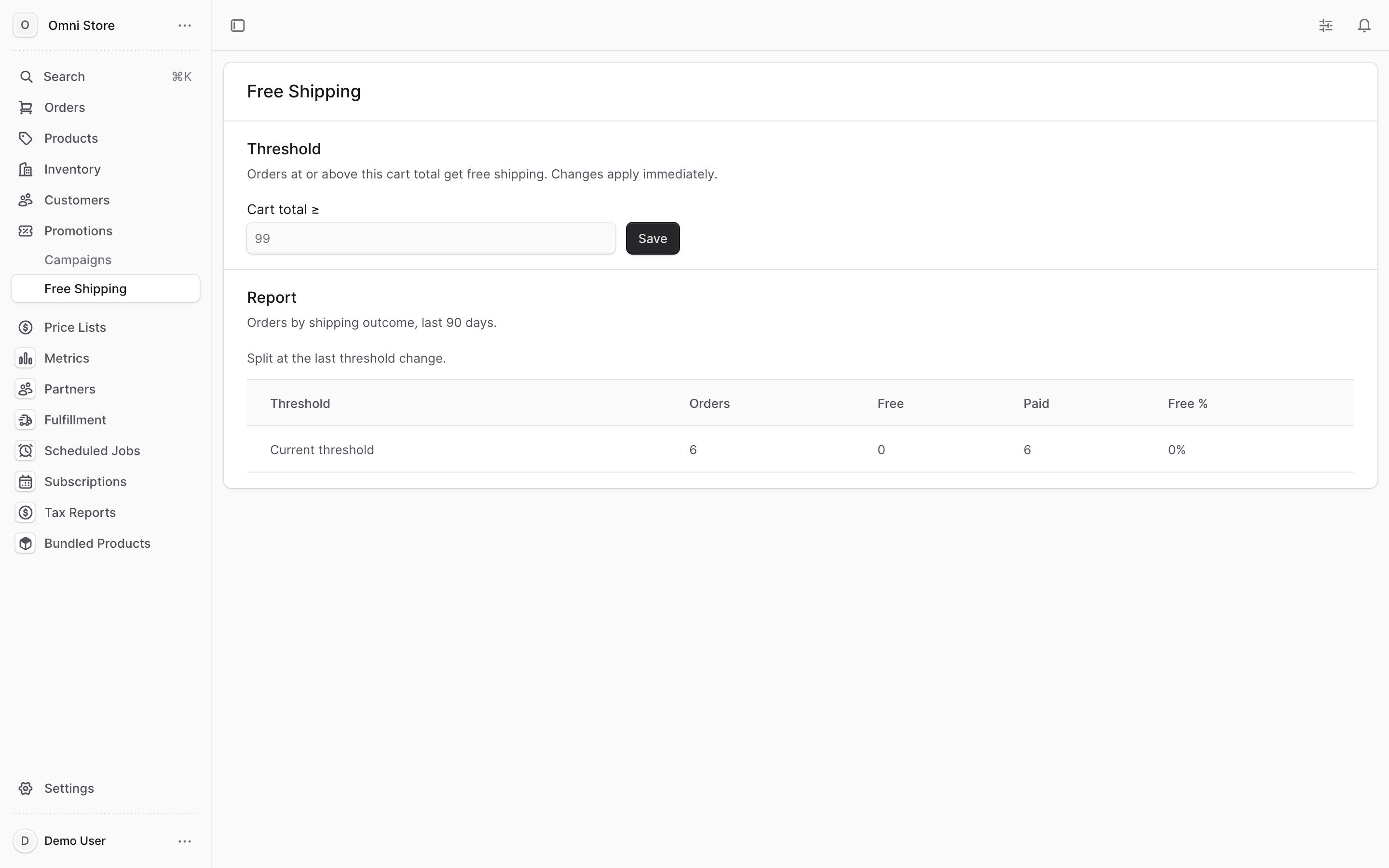
The page has two parts:
- Threshold — the single cart total that unlocks free shipping, with a field to change it and a Save button.
- Report — a read-only table showing how orders split between free and paid shipping over the last 90 days.
2. Set the free-shipping threshold#
In the Threshold section, find the Cart total ≥ field. This is the minimum cart total an order must reach to qualify for free shipping.
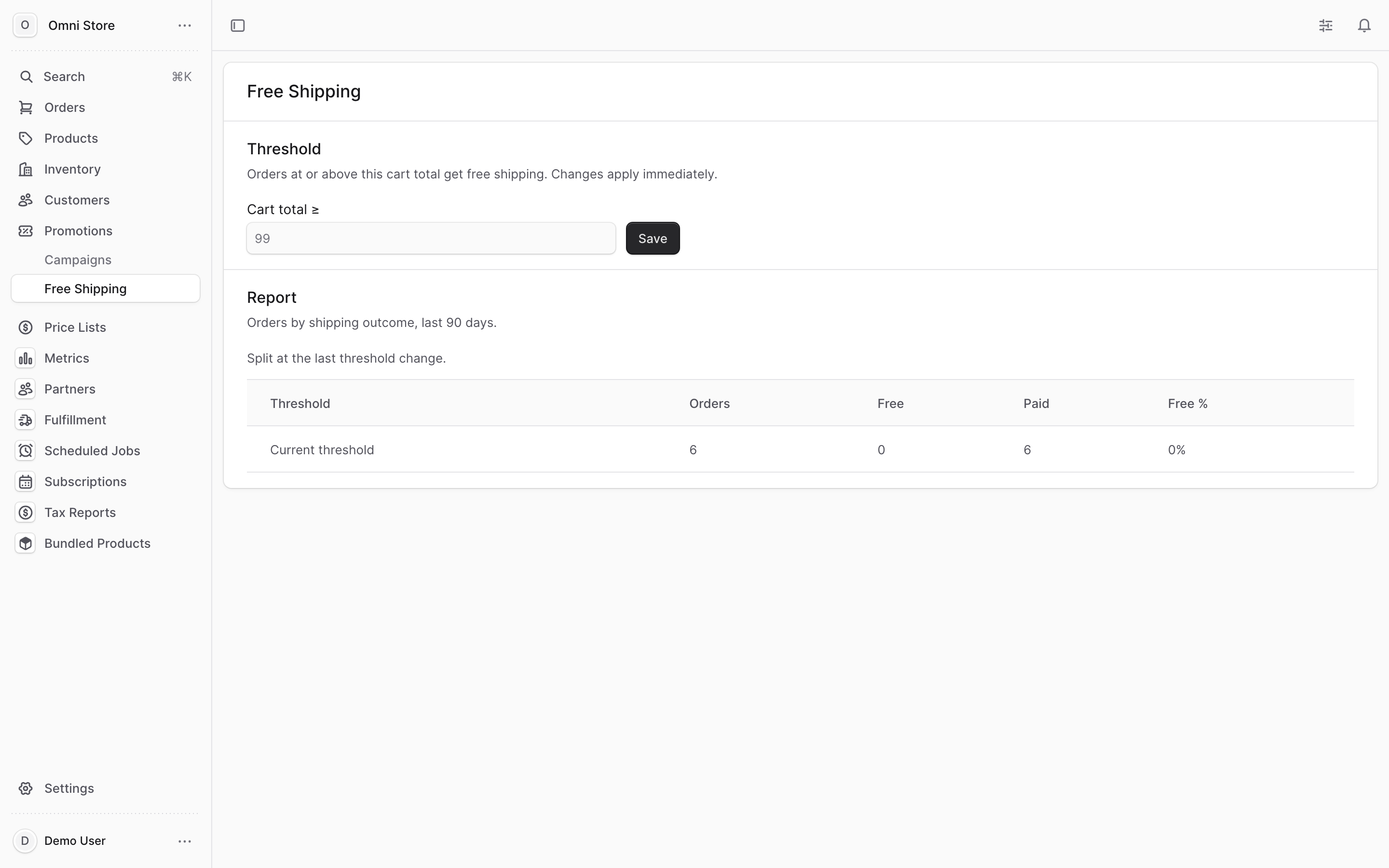
Type the amount you want, then click Save.
- Enter the amount in decimals: type
99for $99, or49.99for $49.99. - Do not enter cents —
4999would mean a $4,999 threshold, not $49.99. - The amount is measured against the cart item total (the value of the items in the cart). When that total reaches the threshold, free shipping is applied.
When you click Save, a confirmation appears and the change takes effect immediately. There is no separate publish step.
Tip: Round-number thresholds like
75or100are easy for customers to understand and easy for you to recognize later in the report.
Caution: This threshold applies to your live storefront right away. If you lower it, more orders will suddenly qualify for free shipping and your shipping costs will rise. If you raise it, customers who expected free shipping at the old amount will start being charged. Double-check the number before saving, and consider making changes during off-peak hours.
3. Read the free-shipping report#
The Report section shows how your orders have split between free and paid shipping over the last 90 days. It is read-only — there's nothing to edit here; it's a scoreboard, not a setting.
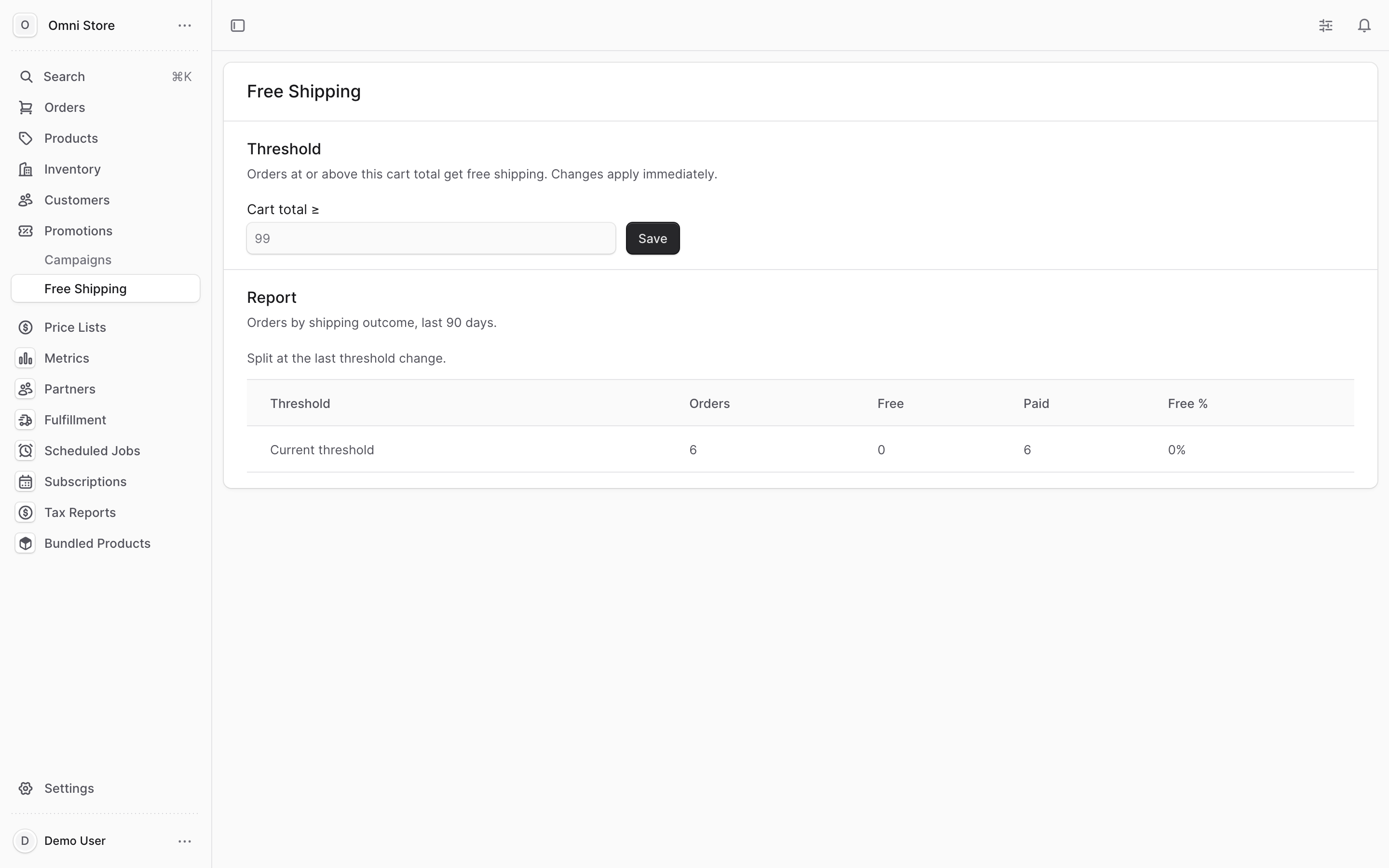
The report is split at the point of your last threshold change, so you can see the before-and-after effect of a change you made. Each row has these columns:
| Column | What it means |
|---|---|
| Threshold | The threshold that was in effect for that group of orders |
| Orders | How many orders fell into that group |
| Free | How many of those orders got free shipping |
| Paid | How many of those orders were charged for shipping |
| Free % | The share of orders that got free shipping |
Use this to sanity-check a change. For example, after lowering the threshold you'd expect the Free % to go up in the newer group of orders.
If you've just made a change, it can take a little time for new orders to appear in the report. If the table shows "No orders in range," it simply means no orders have come through for that group yet.
Quick reference#
- Where it lives: Promotions > Free Shipping in the left navigation (not a top-level item).
- One setting only: a single Cart total ≥ threshold for the whole store — no separate rules, tiers, or toggles.
- Set it: type the amount in the field and click Save; the change is live immediately.
- Use decimals: enter
49.99for $49.99, never4999or cents. - What it checks: the cart item total; orders at or above the threshold get free shipping.
- The report is read-only: it shows Orders, Free, Paid, and Free % split at your last threshold change over the last 90 days.
- Changes affect the live storefront: verify the number before saving.
- For order details: see Order Processing.