Reviews & Ratings
For: merchandising and support staff moderating customer product reviews
What you'll learn: how to view pending reviews, approve or reject customer feedback, understand review states, and make reviews visible on the storefront.
This is a how-to guide for the dashboard, not the API. If you're building an automated moderation system or bulk-updating reviews instead, see the Usage Guide.
Before you start#
You'll need an admin login for your store and the Reviews section visible in the left navigation. If you don't see it, ask your administrator to grant review moderation access.
Throughout this guide, screenshots use a demo store — the customer names, product reviews, and ratings shown are fake.
1. Open the Reviews queue#
Log in to the admin dashboard, then click Reviews in the left navigation. You'll see the reviews list — all customer feedback for your store, organized by status.
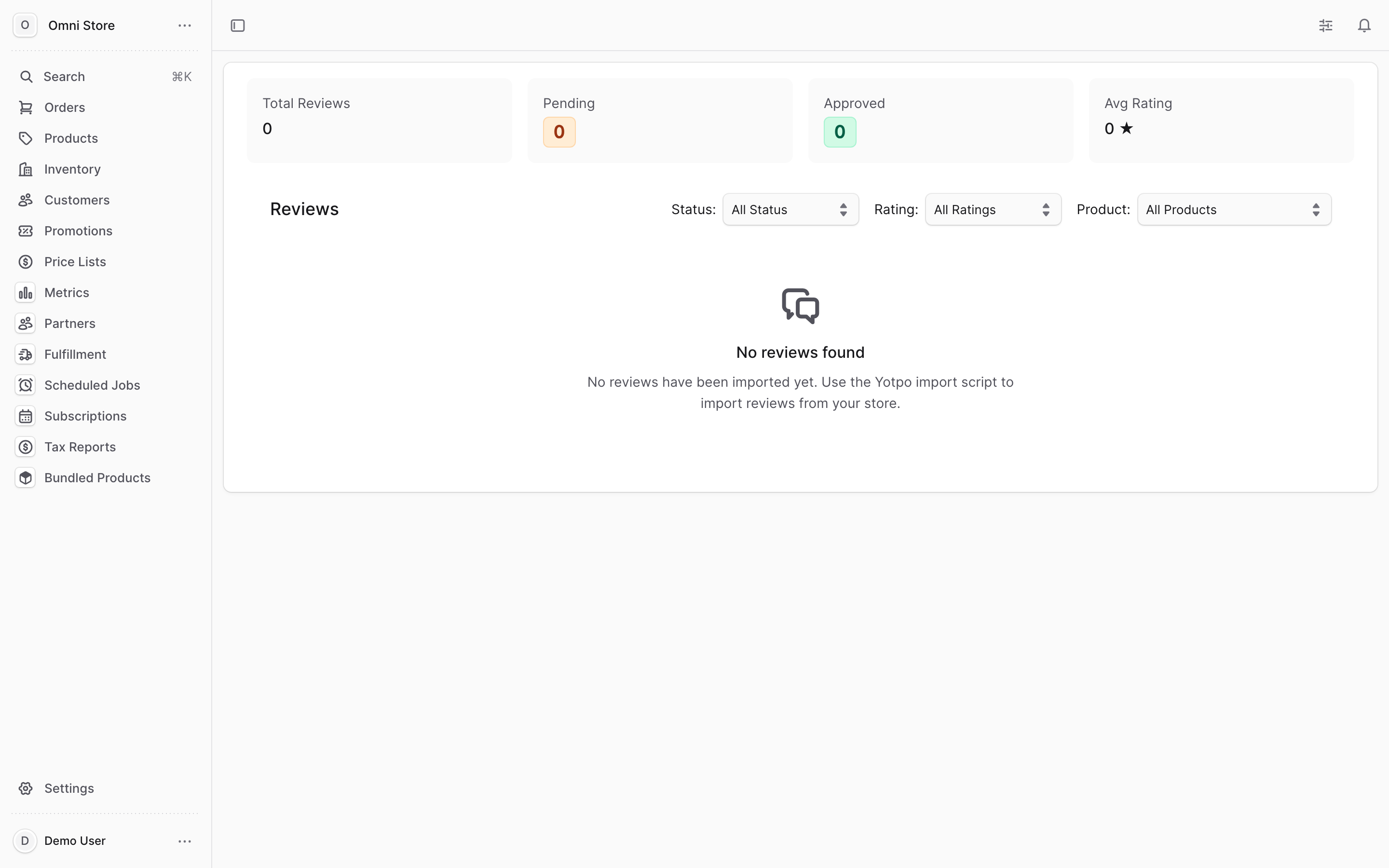
Each row shows:
- Customer name — who submitted the review
- Product — which product was reviewed
- Rating — the star rating given (1–5 stars)
- Title — the review headline or summary
- Status — current state (pending, approved, or rejected)
- Date — when the review was submitted
2. Filter reviews by status#
Click the status tabs at the top of the list to show only reviews in a specific state. Use these filters to organize your moderation workflow.
| Status | Meaning |
|---|---|
| Pending | New review awaiting moderation; not yet visible on the storefront |
| Approved | Review has been approved and is visible to customers on the product page |
| Rejected | Review has been rejected; hidden from the storefront and customers |
Tip: Start with Pending to prioritize new reviews for moderation. Check Approved to ensure quality. Review Rejected to audit moderation decisions.
3. Search for a specific review#
Use the search box at the top to find reviews quickly:
- Search by customer name — type the customer's name or email
- Search by product name — type keywords from the product title
- Search by review text — enter words from the review content
4. Open a review to read the full text#
Click any review row to open the detail view. You'll see the complete customer feedback, rating, and submission date.
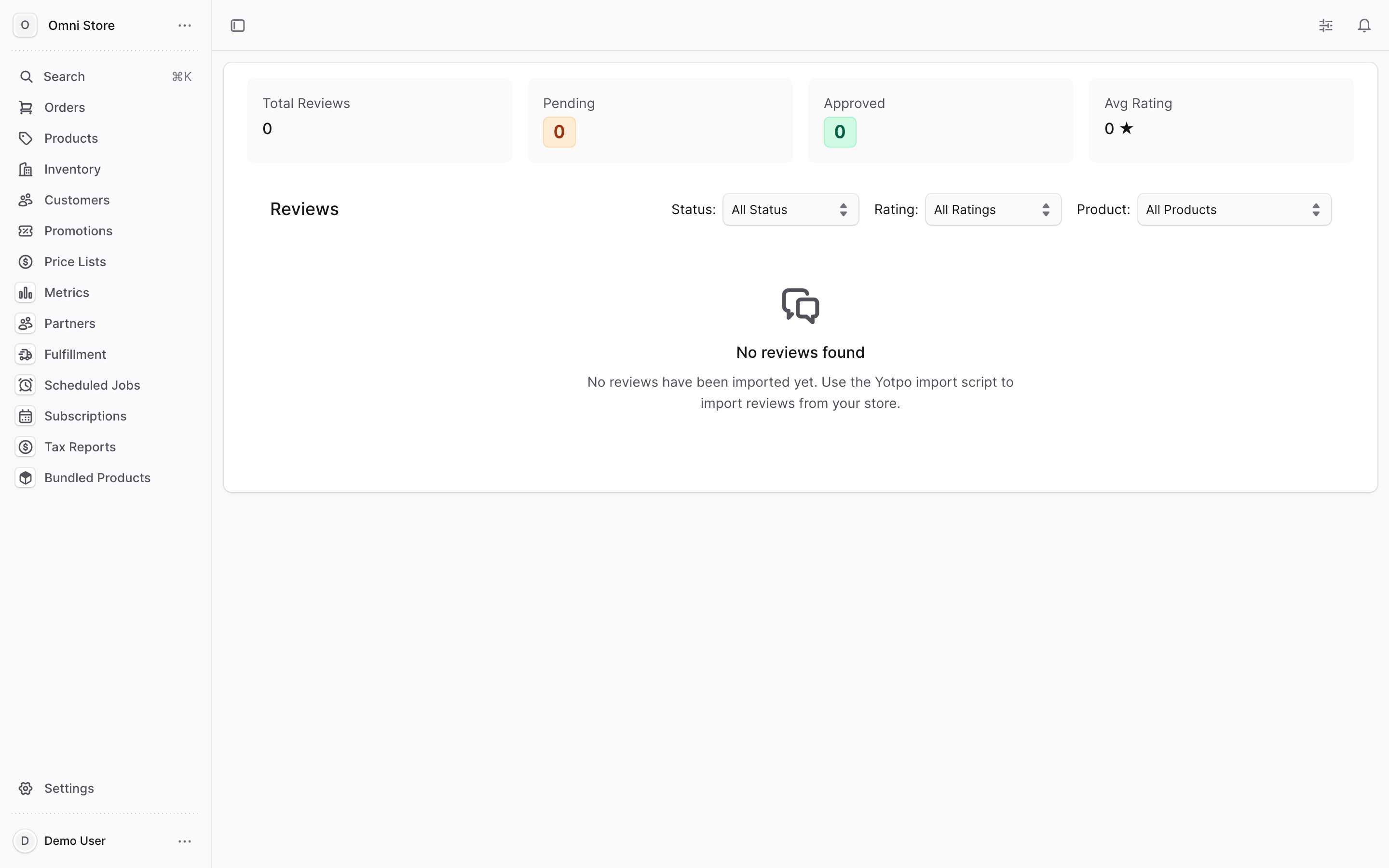
At the top you'll see:
- Customer name and email — who submitted the review
- Product name — which product was reviewed
- Rating — the star rating (1–5)
- Review title — headline provided by the customer
- Submission date — when the review was posted
Below that is the Review text — the complete customer feedback in full.
Caution: Once a review is approved, it becomes public on the storefront. Review the text carefully for compliance with your content policy before approving.
5. Approve a single review#
To approve a review and make it visible on the storefront product page:
- Open the review detail page
- Click the Approve button
- The review status changes to Approved immediately
- The review now appears in the storefront reviews widget on the product detail page
Once approved, customers can see this review and any associated rating on your storefront.
6. Reject a single review#
To reject a review and hide it from the storefront:
- Open the review detail page
- Click the Reject button
- Optionally, add a note explaining why (for internal reference)
- The review status changes to Rejected immediately
- The review is removed from the storefront if it was previously approved
Rejected reviews remain in the system for audit purposes but are not visible to customers.
7. Use bulk actions to approve or reject multiple reviews#
To moderate many reviews at once:
- In the Reviews list, check the boxes next to the reviews you want to action
- At the bottom of the list, click Approve Selected or Reject Selected
- Confirm your action in the dialog that appears
- All selected reviews are updated to the chosen status immediately
Bulk actions are helpful when you have a large queue of pending reviews to process at once.
Tip: Use status filters to show only pending reviews, then select all and approve or reject them as a batch.
8. Understand where reviews appear on the storefront#
Approved reviews surface in two places:
Product detail page — The storefront displays a reviews widget on each product's detail page, showing:
- Star rating average across all approved reviews
- Individual approved review cards with customer name, rating, and text
- Pagination if there are many reviews
Review feed — Some storefronts include a dedicated reviews page or section listing all approved product reviews across the catalog.
Only approved reviews are visible. Pending and rejected reviews remain hidden from customers.
Quick reference#
| Task | How to do it |
|---|---|
| View pending reviews | Click Reviews → filter to Pending tab |
| Read a review | Click any review row to open full text and details |
| Approve one review | Open the review → click Approve |
| Reject one review | Open the review → click Reject |
| Approve multiple at once | Check boxes → click Approve Selected |
| Reject multiple at once | Check boxes → click Reject Selected |
| Search for a review | Use search box to find by customer name, product, or text |
| Check storefront | Approved reviews appear on product detail pages |