Editing & Cancelling Orders
For: operations managers modifying orders in the admin dashboard
What you'll learn: how to edit line items, change addresses, transfer ownership, and cancel orders.
This is a how-to guide for the dashboard, not the API. If you're building an automated order management system instead, see the Usage Guide.
Before you start#
You'll need an admin login for your store and the Orders section visible in the left navigation. Every action in this guide starts from an order's detail page — open the order first (see Order Basics for how to find and read an order).
Throughout this guide, screenshots use a demo store — the names, orders, and amounts shown are fake. All prices are decimals: $49.99 shows as 49.99.
1. Editing an order#
Use the Edit Order button (or the Edit order action in the "..." menu at the top) to add items, remove items, or change quantities on an order.
Click Edit Order. The order's line items will appear in edit mode.
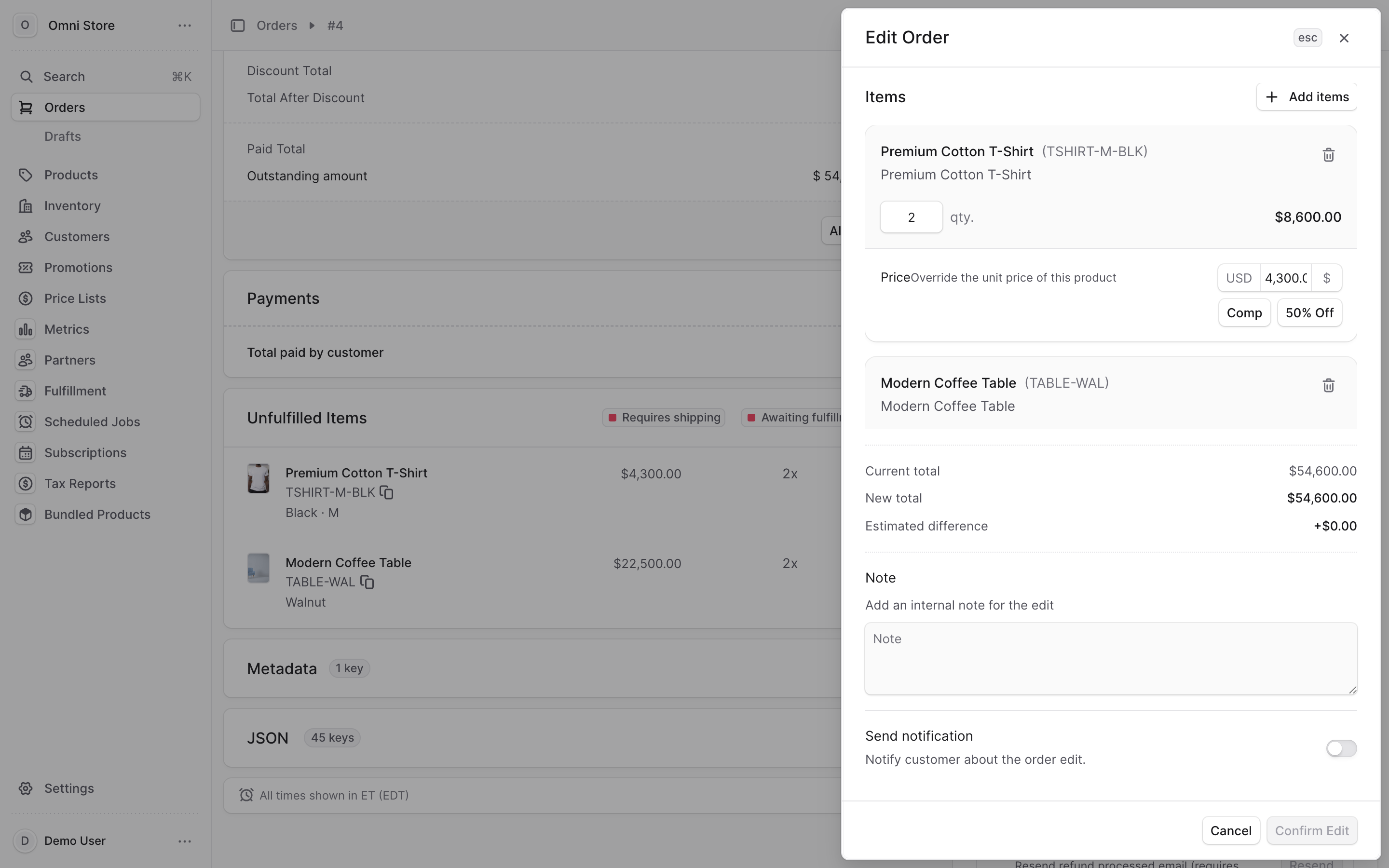
To add a new item:
- Click Add item
- Search for and select the product
- Enter the quantity
- The new item gets a New badge (green)
To remove an item:
- Click the trash icon next to the item
- The item gets a Removed badge (red)
To change a quantity:
- Edit the quantity field
- The item gets a Modified badge (orange)
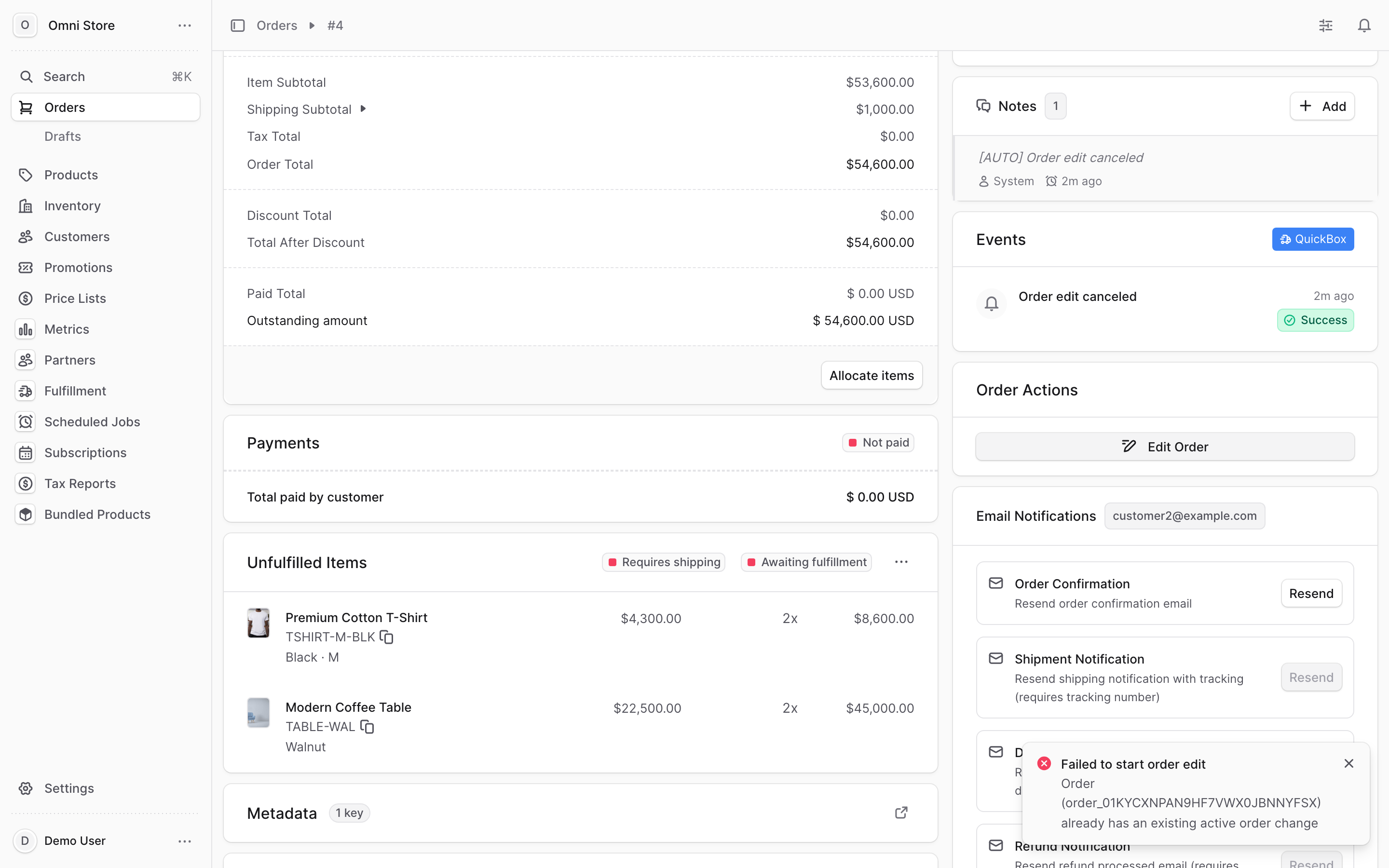
When you're done, click Save Changes. The order total will recalculate based on your edits.
Caution: if the order has already been paid, editing it may create an outstanding amount (if items were added) or a refund due (if items were removed). Coordinate with your payment and fulfillment teams before saving.
Tip: only edit an order before it ships. Once items leave the warehouse, use Create Return, Create Exchange, or Create Claim instead (see Returns, Exchanges & Claims guide).
2. Changing the shipping or billing address#
To update where an order is being shipped or how the invoice is addressed, use the address actions in the "..." menu at the top of the order.
Click the "..." menu, then select:
- Shipping address — to change the delivery address
- Billing address — to change the billing address
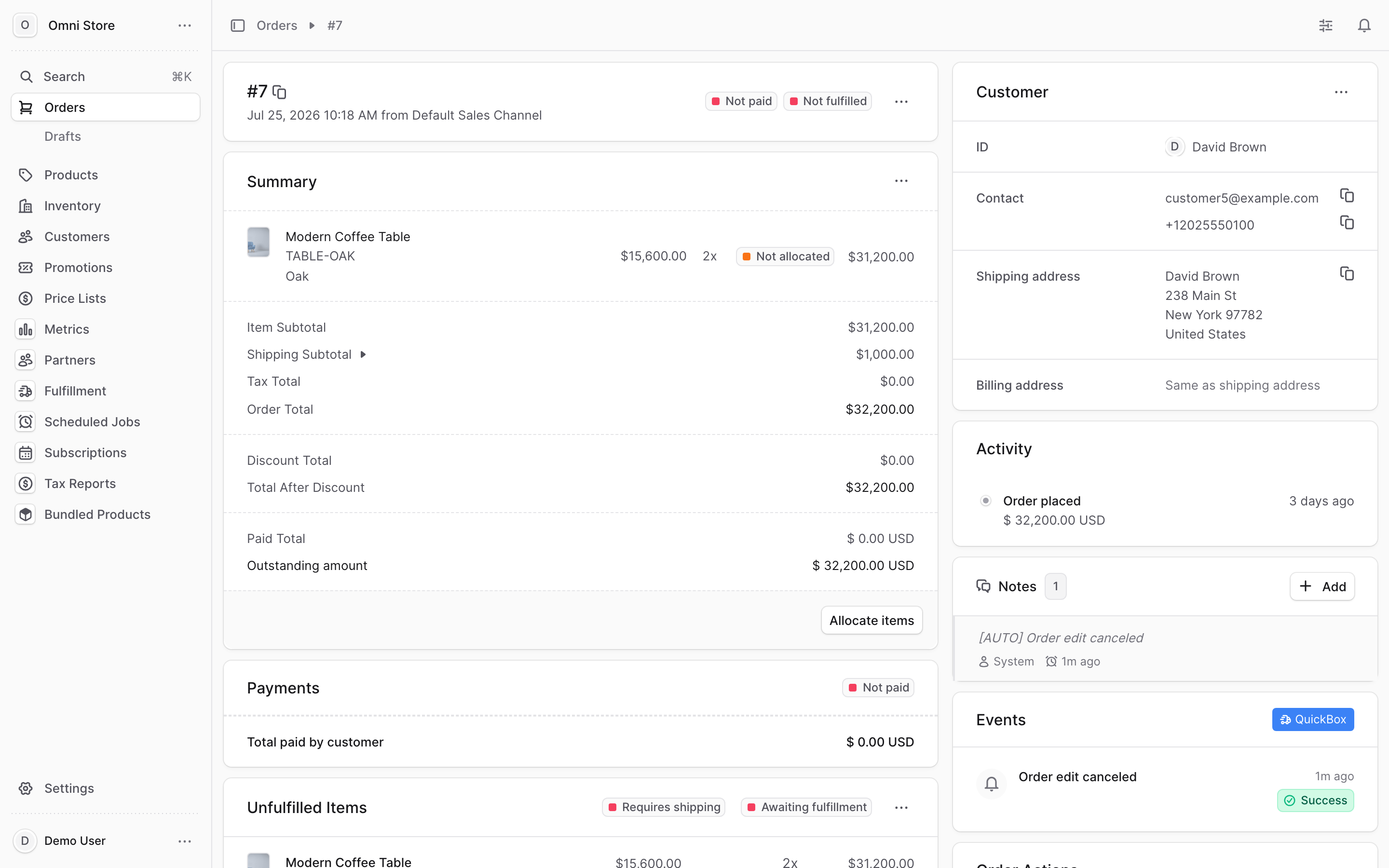
A panel will open with the current address. Edit any fields (street, city, state, zip) and click Save. The change takes effect immediately.
Tip: change the shipping address before the warehouse ships the order. Once a shipment is created, coordinate with your fulfillment team.
3. Transferring ownership#
If an order was placed by the wrong customer (or you need to reassign it), use the Transfer ownership action in the "..." menu.
Click the "..." menu, then select Transfer ownership.
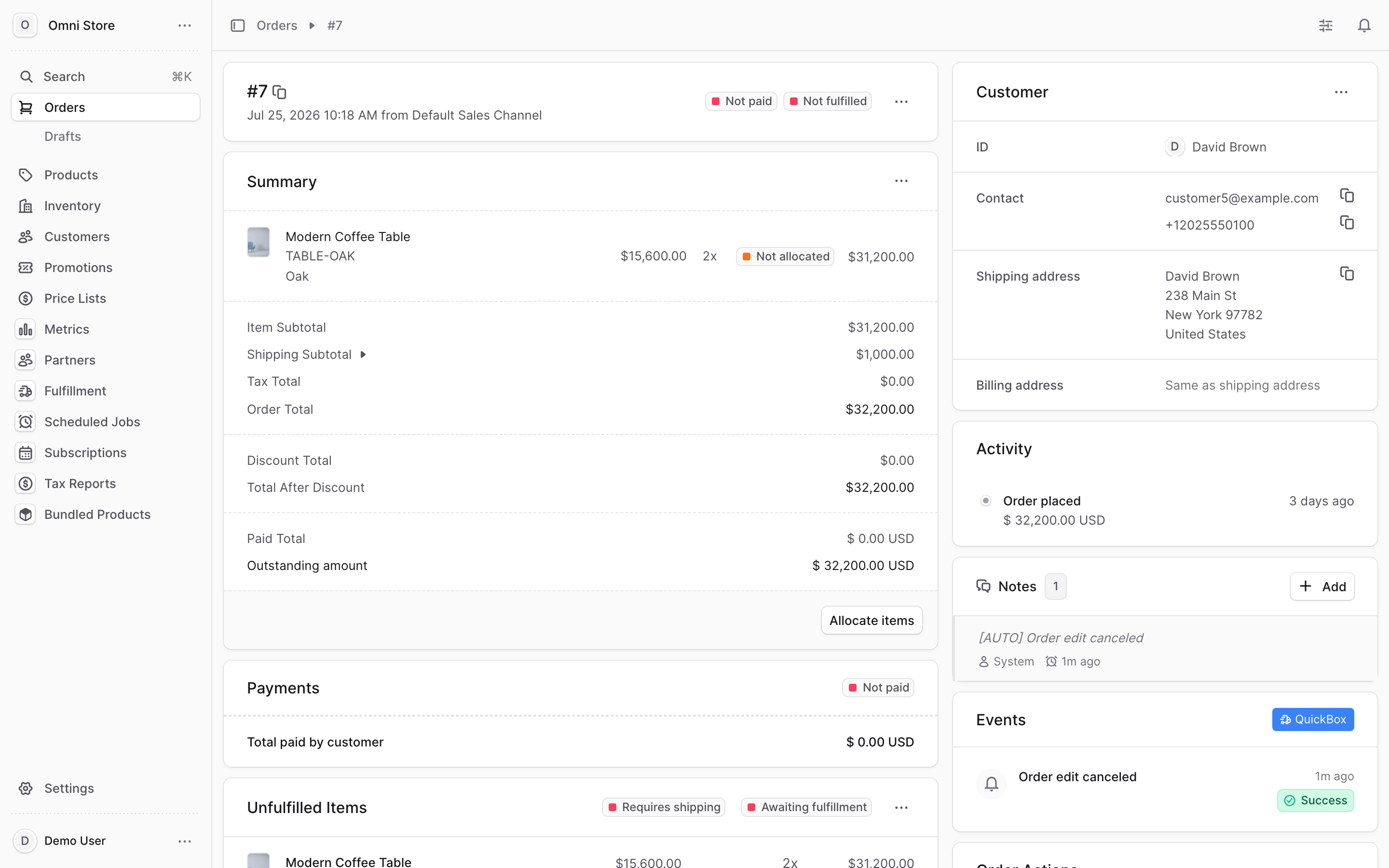
A dialog will appear. Search for the correct customer by name or email, select them, and click Save. The order's customer will be updated, and the new customer will see it in their order history.
4. Cancelling an order#
Use the Cancel action in the "..." menu at the top of the order to cancel it entirely.
Click the "..." menu, then select Cancel.
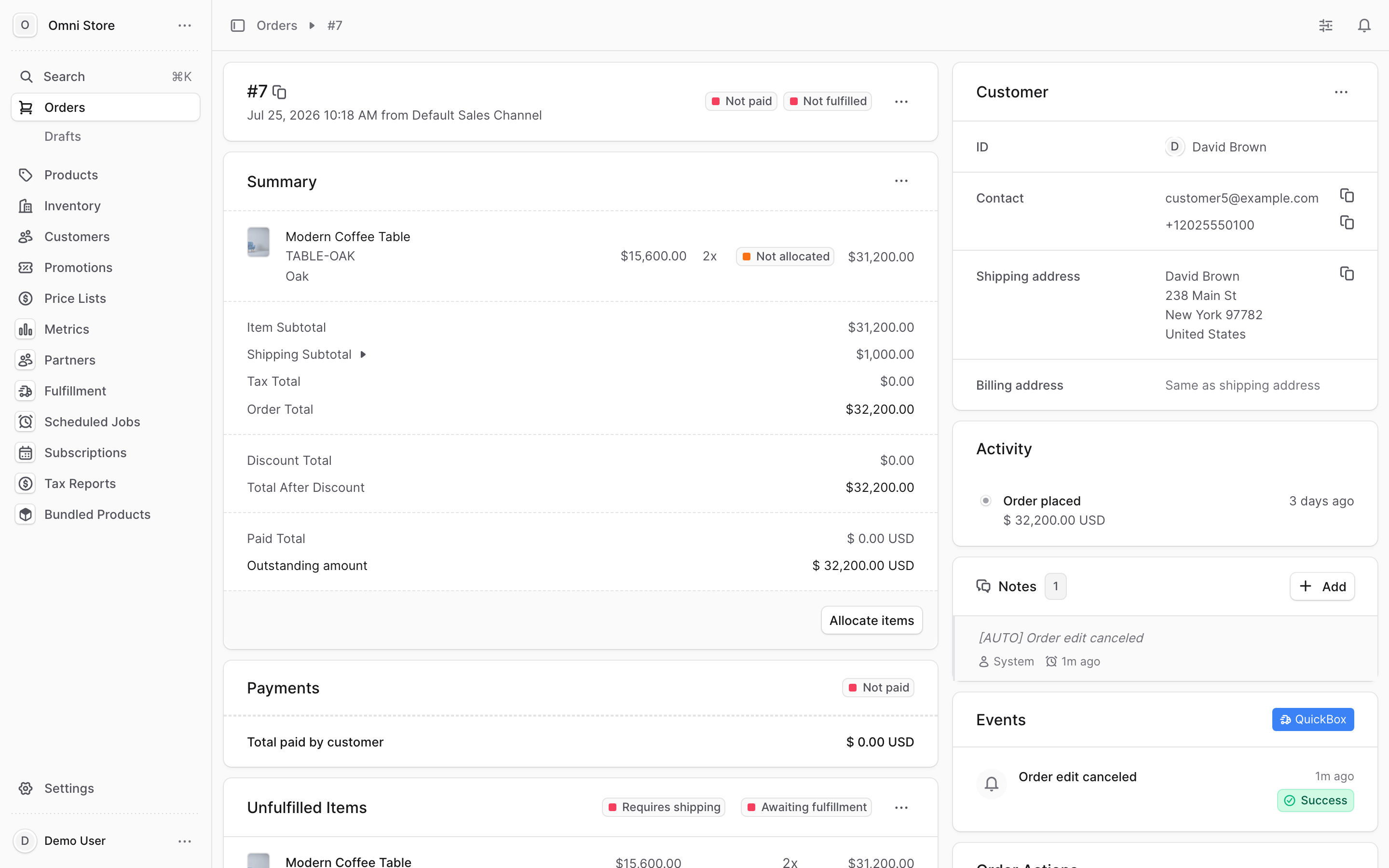
A confirmation dialog will appear. Click Confirm to proceed.
When an order is cancelled:
- The order is marked Cancelled and will not be fulfilled
- The payment status stays as is (not automatically refunded) — you must issue a refund manually if needed
- The activity timeline records the cancellation date and time
Caution: cancellations are difficult to undo. If you cancel an order by mistake, contact your administrator immediately — they have access to recovery tools. Always double-check the order number before confirming.
Use cancellation only for:
- Orders the customer requests to cancel before shipment
- Duplicate orders that shouldn't be fulfilled
- Orders placed in error
5. When to use each action#
This table helps you pick the right action for common scenarios:
| Scenario | Use this | Why |
|---|---|---|
| Customer wants to swap items for different ones | Create Exchange | Return old items, send new ones |
| Customer received damaged or wrong items | Create Claim | Refund or replace faulty goods |
| Customer wants items back and a refund | Create Return | Process the return shipment and refund |
| Add or remove items before shipment | Edit Order | Adjust line items and total |
| Wrong customer assigned to order | Transfer ownership | Reassign order to correct customer |
| Update delivery address | Shipping address | Change where order ships |
| Update invoice address | Billing address | Change where invoice is sent |
| Order shouldn't ship at all | Cancel | Stop fulfillment entirely |
Quick reference#
- Edit order: add/remove/modify items before shipment; changes update the total
- Badges in edit mode: New (green) = added, Modified (orange) = changed quantity, Removed (red) = deleted
- Shipping/Billing address: use the "..." menu to update delivery or invoice addresses
- Transfer ownership: reassign order to a different customer via the "..." menu
- Cancel: mark order as cancelled in the "..." menu — hard to undo, so verify first
- For post-purchase returns & exchanges: see the Returns, Exchanges & Claims guide