Sync Reconciliation
For: ops staff monitoring order sync health between Konnektive, OmniCart, and QuickBox
What you'll learn: how to spot sync failures, understand sync states, read sync job health, and recognize when an order is stuck between systems.
This is a how-to guide for monitoring sync from the dashboard. If you're building an automated integration or need to manually resend data, see the Usage Guide or escalate to your administrator.
Before you start#
You'll need an admin login for your store and access to the QuickBox Sync and Konnektive sections in the left navigation. If you don't see these sections, ask your administrator to grant sync monitoring access.
Throughout this guide, screenshots use a demo store — the order numbers, dates, and customer details shown are fake.
1. Understand the sync flow#
Orders flow through three systems:
- Konnektive — the master order source (sales, payments, fulfillment data)
- OmniCart — your order platform (holds a synced copy of Konnektive orders)
- QuickBox — the warehouse system (receives fulfilled orders to ship)
When a customer places an order, it is captured in Konnektive. The system then syncs it to OmniCart, and OmniCart forwards fulfillment details to QuickBox. Each sync step is a scheduled background job.
2. Open QuickBox Sync to see job health#
Log in to the admin dashboard and click QuickBox Sync in the left navigation.
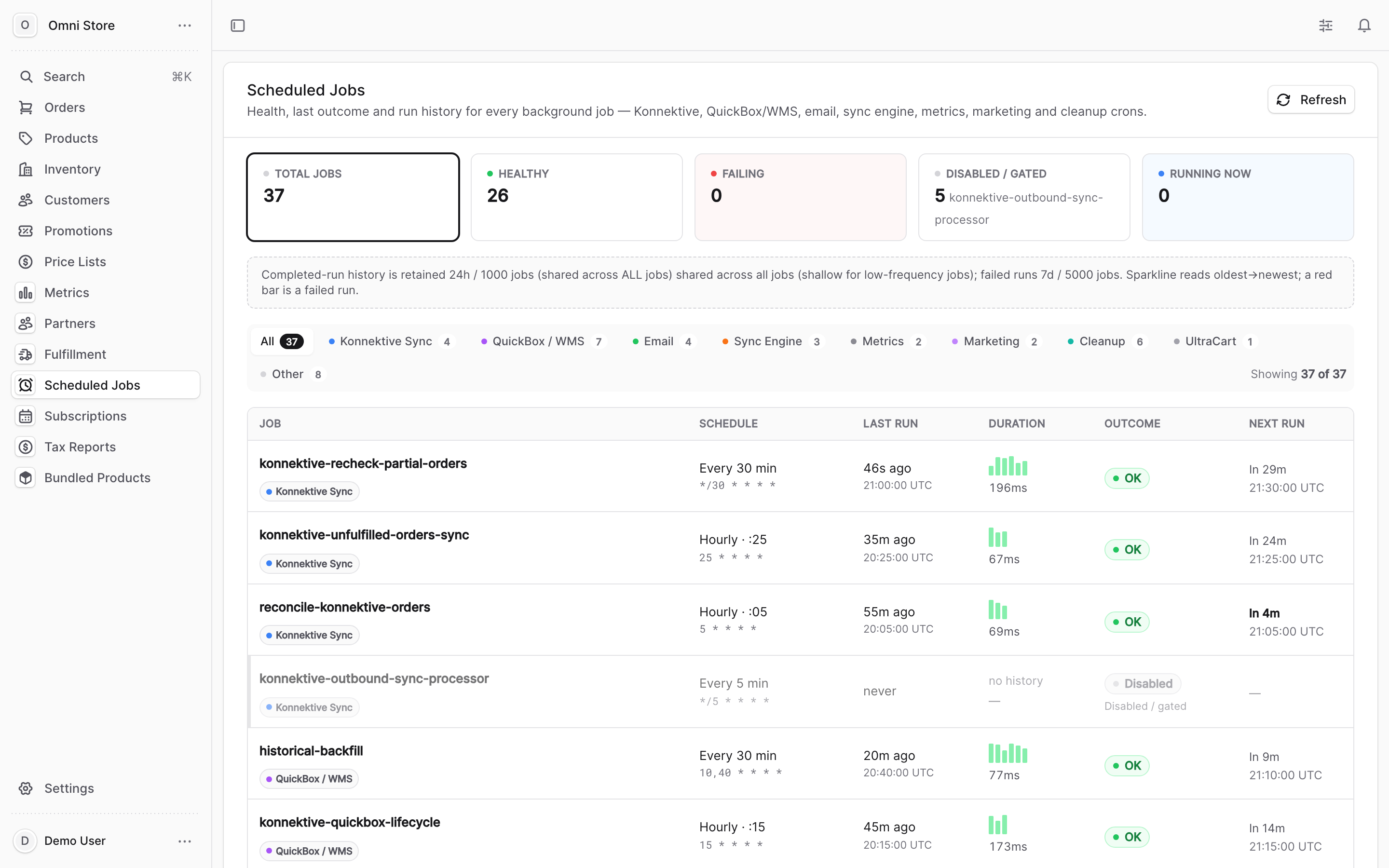
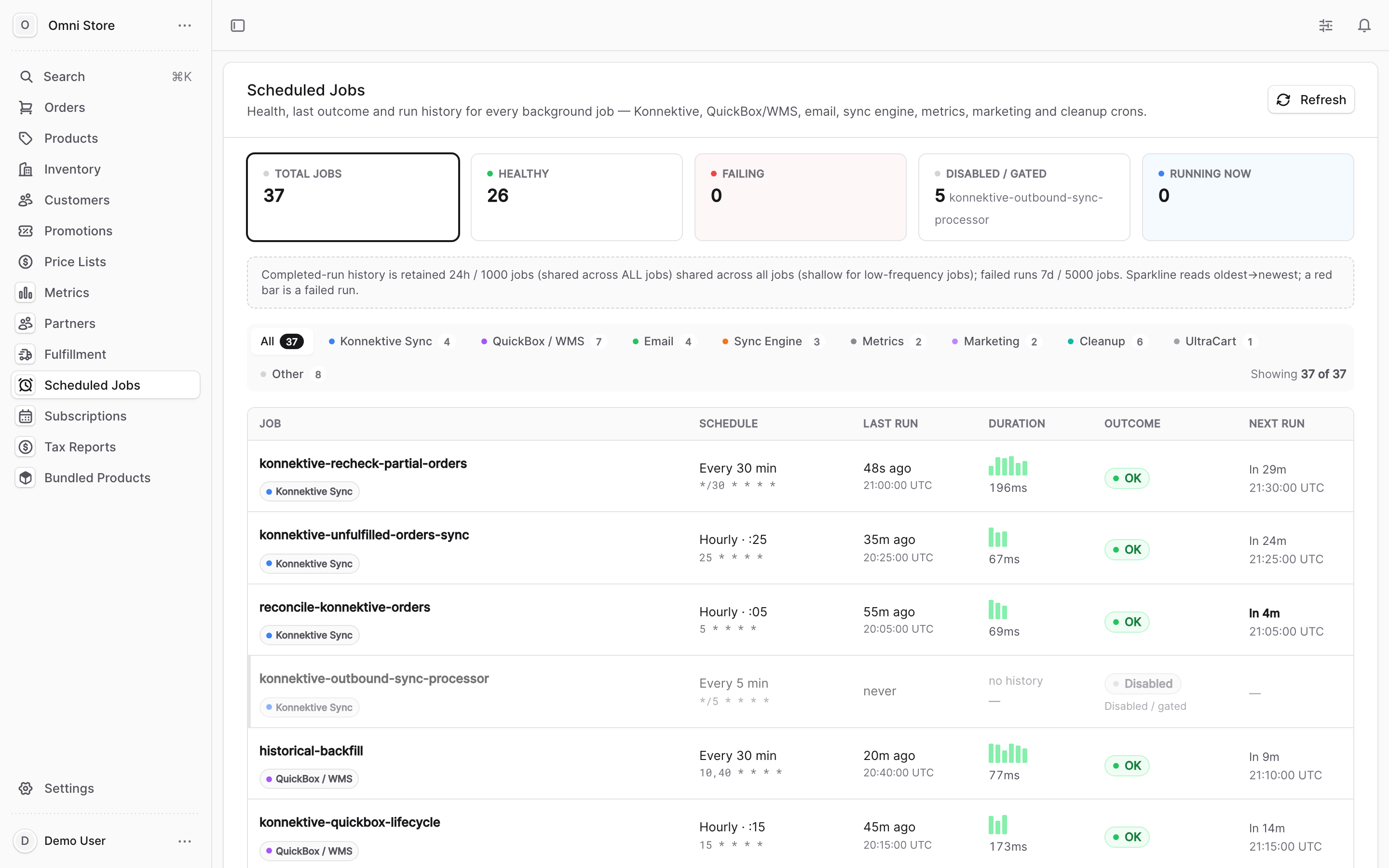
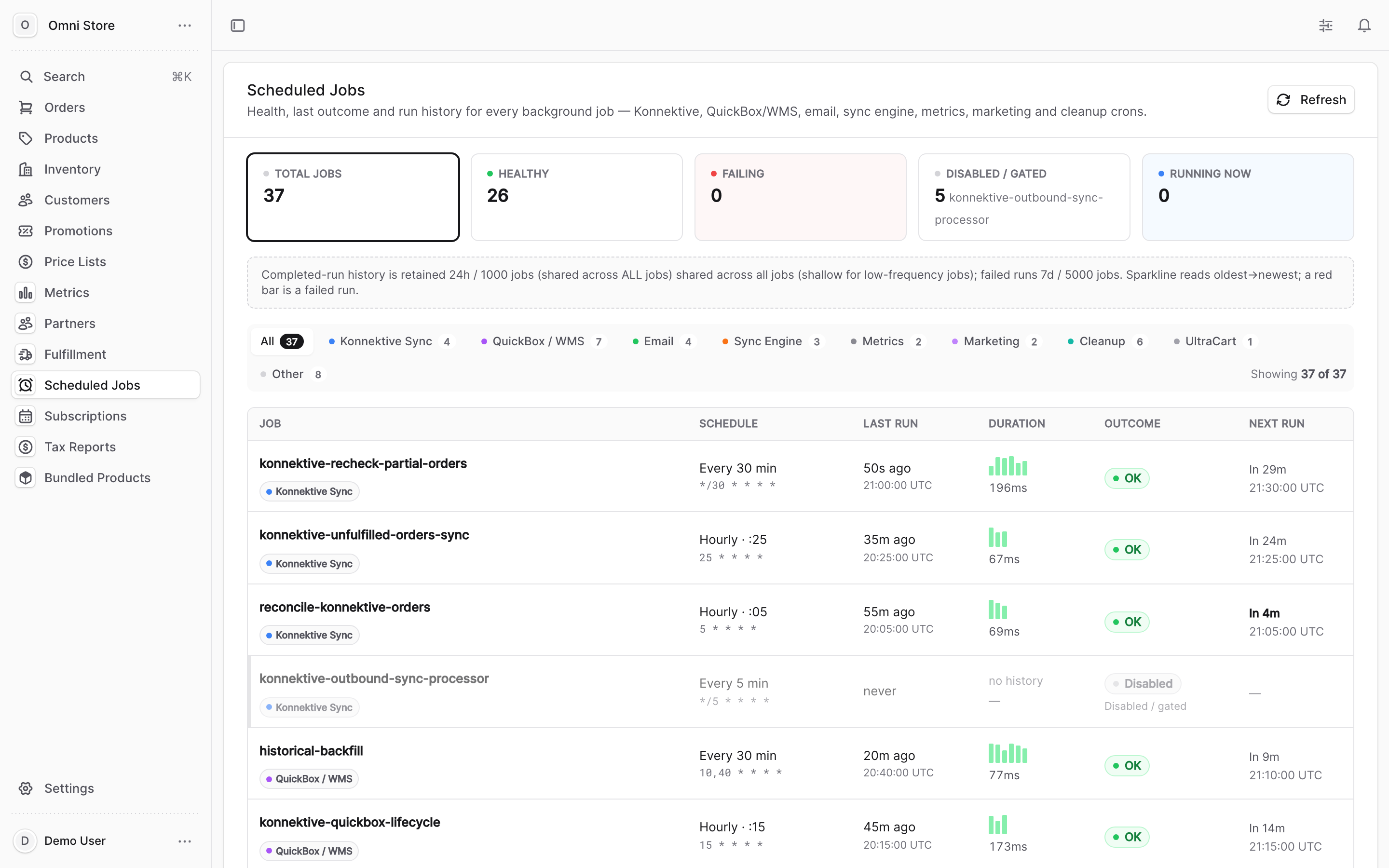
You'll see a list of scheduled sync jobs. Each job shows:
| Column | What it means |
|---|---|
| Job name | The name of the sync operation (e.g., "Konnektive → OmniCart orders", "OmniCart → QuickBox fulfillment") |
| Status | Current state: OK, Failed, Running, or Disabled |
| Last run | When the job last completed (or errored) |
| Next run | When the job is scheduled to run again |
A healthy sync zone shows all jobs with OK status and recent run timestamps.
3. Read sync job statuses#
Each job has one of four states:
| Status | What it means | What to do |
|---|---|---|
| OK | Job ran successfully and synced data cleanly | Nothing — continue monitoring |
| Failed | Job attempted to run but encountered an error | See section 5: When a sync job fails |
| Running | Job is currently executing; this usually resolves within seconds | Wait a moment and refresh; if it stays Running for >2 minutes, escalate |
| Disabled | Job is not scheduled to run (manual pause or maintenance) | Ask your administrator why it's disabled; do NOT restart without approval |
4. Open Konnektive Sync Monitor to read order-level sync detail#
Click Konnektive in the left navigation, then select Sync Monitor.
This page shows recent orders and their sync state between Konnektive and OmniCart. Each row displays:
- Order ID — the Konnektive order identifier
- Synced to OmniCart — Yes/No, and the timestamp if synced
- Fulfillment synced to QuickBox — Yes/No, and the timestamp if synced
- Last error (if any) — a brief message if the sync failed
Watch for these patterns:
| You see | It means | What to do |
|---|---|---|
| Order with Synced to OmniCart: Yes and recent timestamp | Order synced cleanly and promptly | Nothing — it's on track |
| Order with Synced to OmniCart: No but order is old (>1 hour) | Order stuck in enqueue window; hasn't synced yet | See section 5 |
| Order with Last error showing a message | Sync attempted but encountered a specific error | Click the order; read the error detail and escalate if unclear |
5. When a sync job fails#
If a QuickBox Sync job shows Failed, or if an order shows a Last error in the Konnektive Sync Monitor:
Check the job timestamp. If the job just failed (within the last few minutes), it may retry automatically on the next tick. Wait 2–3 minutes and refresh.
Read the error message. Click the failed job or order to see the full error detail. Common failures include:
- Product SKU mismatch — a line item references a product or variant that doesn't exist in OmniCart
- Warehouse connection error — QuickBox is temporarily unavailable
- Payment validation — order payment details didn't pass validation during sync
Do NOT manually re-push the order. Instead, capture the order number and error message, and escalate to your administrator. Re-pushing at the wrong moment can flag an order for review or create duplicates.
Caution: Never click "Retry" or "Force Resend" unless your administrator explicitly instructs you to. A badly timed resend can mark an order as needing review or cause a duplicate shipment in the warehouse.
6. Spot a stuck order (enqueue window gap)#
A common failure is an order that completes its payment in Konnektive but never appears in OmniCart. This happens when the sync window between Konnektive's order completion and OmniCart's enqueue closes before the order is captured.
How to spot it:
- Order exists in Konnektive (you can see it in the sales system)
- Order does not appear in the OmniCart Orders list
- Konnektive Sync Monitor shows the order with Synced to OmniCart: No
- Order timestamp is older than 1 hour
What to do:
Capture the order ID and the timestamp it was placed in Konnektive, and escalate to your administrator. They can manually enqueue the order or adjust the sync window.
7. Check product mapping (Konnektive)#
Click Konnektive in the left navigation, then select Product Mapping.
This page shows how Konnektive products map to OmniCart products. It's useful when you see SKU mismatch errors during sync. Each row shows:
- Konnektive product ID — the source identifier
- Konnektive SKU — the SKU in Konnektive
- Mapped to OmniCart product — the OmniCart product ID (if a mapping exists)
- Mapping status — OK or Missing
If a product shows Missing, orders containing that product will fail to sync. Do NOT manually add mappings — contact your administrator to establish the mapping and retry the sync.
8. Monitor sync health over time#
Every 15–30 minutes, glance at the QuickBox Sync job statuses. A sustained pattern of failures (more than 2–3 in an hour) suggests a systemic issue:
- All jobs failing — likely a system outage or database issue; escalate immediately
- One job repeatedly failing — specific sync stage is broken (e.g., product lookup); capture the error and escalate
- Orders stuck in Konnektive — enqueue window may be too narrow; escalate
For ongoing monitoring, you can set a reminder to check sync health once per shift or before peak order times.
Quick reference#
- Sync flow: Konnektive → OmniCart → QuickBox
- Check jobs: QuickBox Sync dashboard shows status (OK / Failed / Running / Disabled)
- Check orders: Konnektive Sync Monitor shows per-order sync state and last errors
- Stuck orders: Missing from OmniCart after 1+ hour? Escalate with the order ID
- Failed job? Wait 2–3 minutes for auto-retry; if it persists, escalate with the error message
- Product issues: Product Mapping page shows which Konnektive SKUs are mapped to OmniCart
- Never manual resend — a badly timed re-push can duplicate orders or flag them for review
- For fulfillment sync detail: see the Fulfillment Operations guide