Marketing & Paid Acquisition
For: marketing staff tracking ad spend, campaigns, and paid acquisition performance
What you'll learn: how to access the Marketing area, view campaign performance, track spend by platform, monitor paid acquisition metrics, and configure marketing settings.
This is a how-to guide for the dashboard, not the API. If you're building an automated marketing reporting system or integrating with ad platforms instead, see the Usage Guide.
Before you start#
You'll need an admin login for your store and the Marketing section visible in the left navigation. If you don't see it, ask your administrator to grant marketing access.
Throughout this guide, screenshots use a demo store — the names, campaigns, and spending shown are fake.
1. Access the Marketing area#
Log in to the admin dashboard and click Marketing in the left navigation.
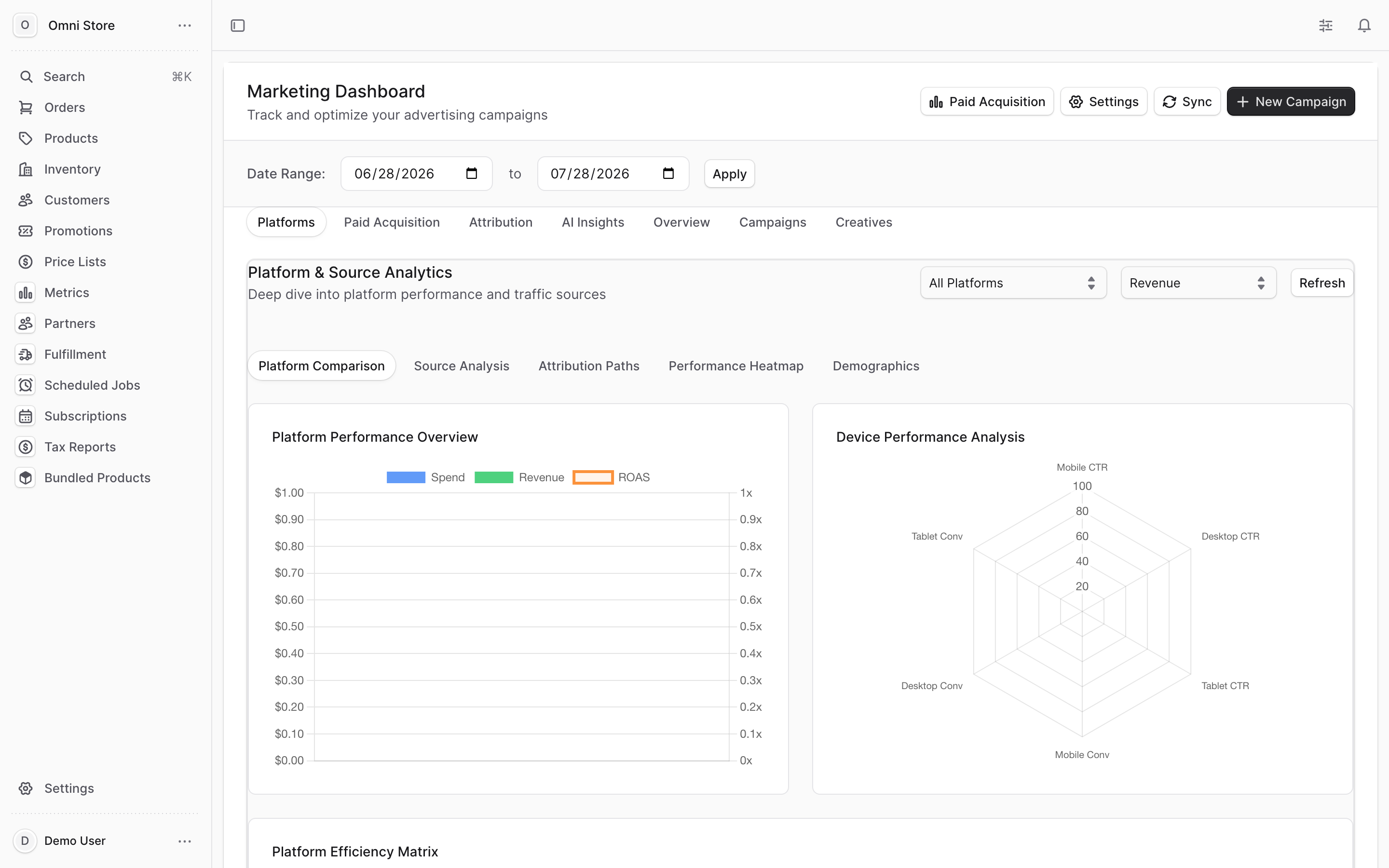
The Marketing area has three main sub-sections:
- Campaigns — view and manage your marketing campaigns
- Paid Acquisition — track customer acquisition through paid channels
- Settings — configure marketing integrations and preferences
2. View campaign performance#
Click Campaigns in the Marketing section to see an overview of your active and past campaigns.
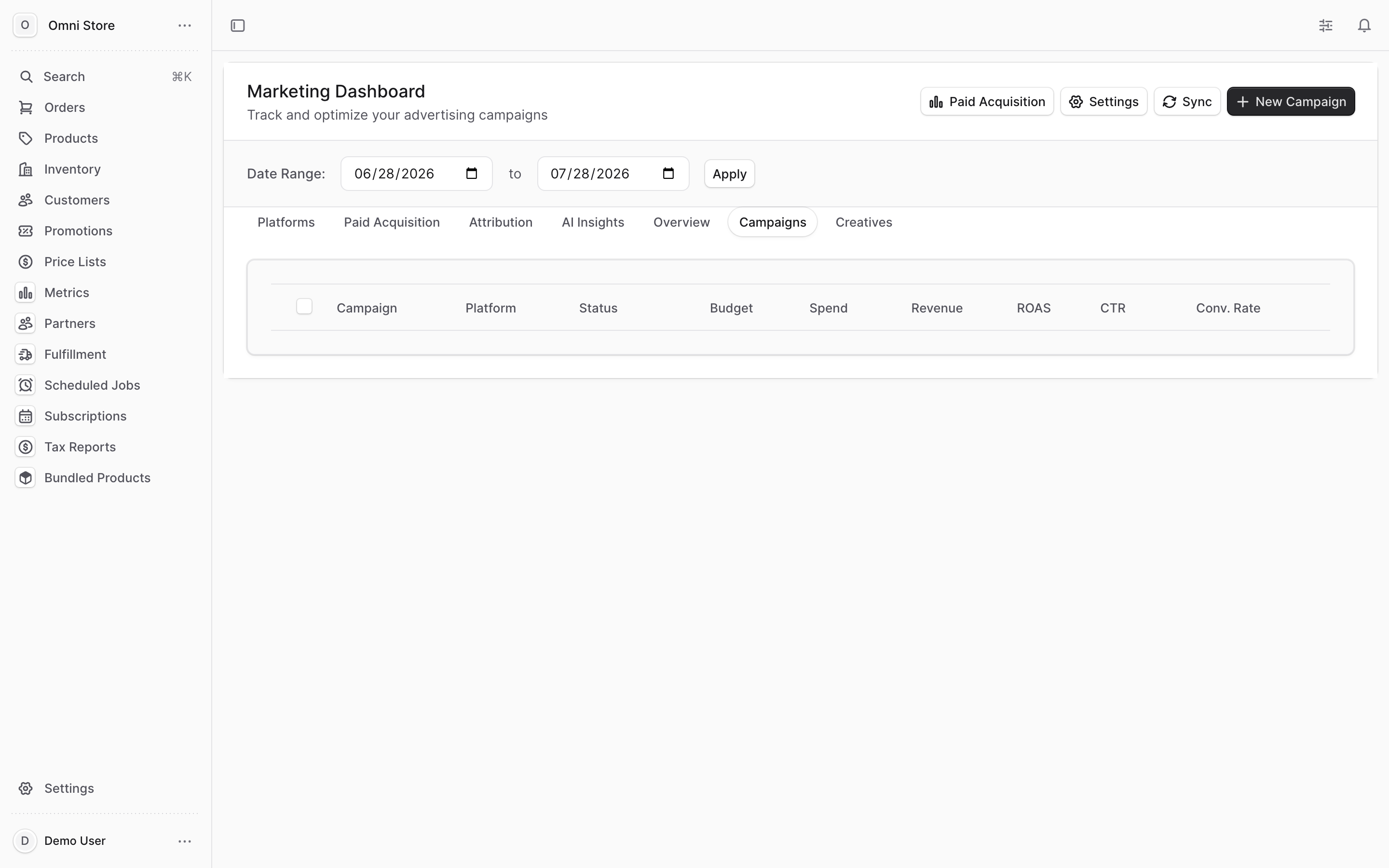
For each campaign you'll see:
- Campaign name — the name you assigned when you created the campaign
- Platform — which ad platform or channel the campaign is running on
- Status — whether the campaign is active, paused, or completed
- Spend — the total amount spent on that campaign (in dollars, as a decimal: 49.99)
- Performance metrics — impressions, clicks, conversions, and return on ad spend (ROAS)
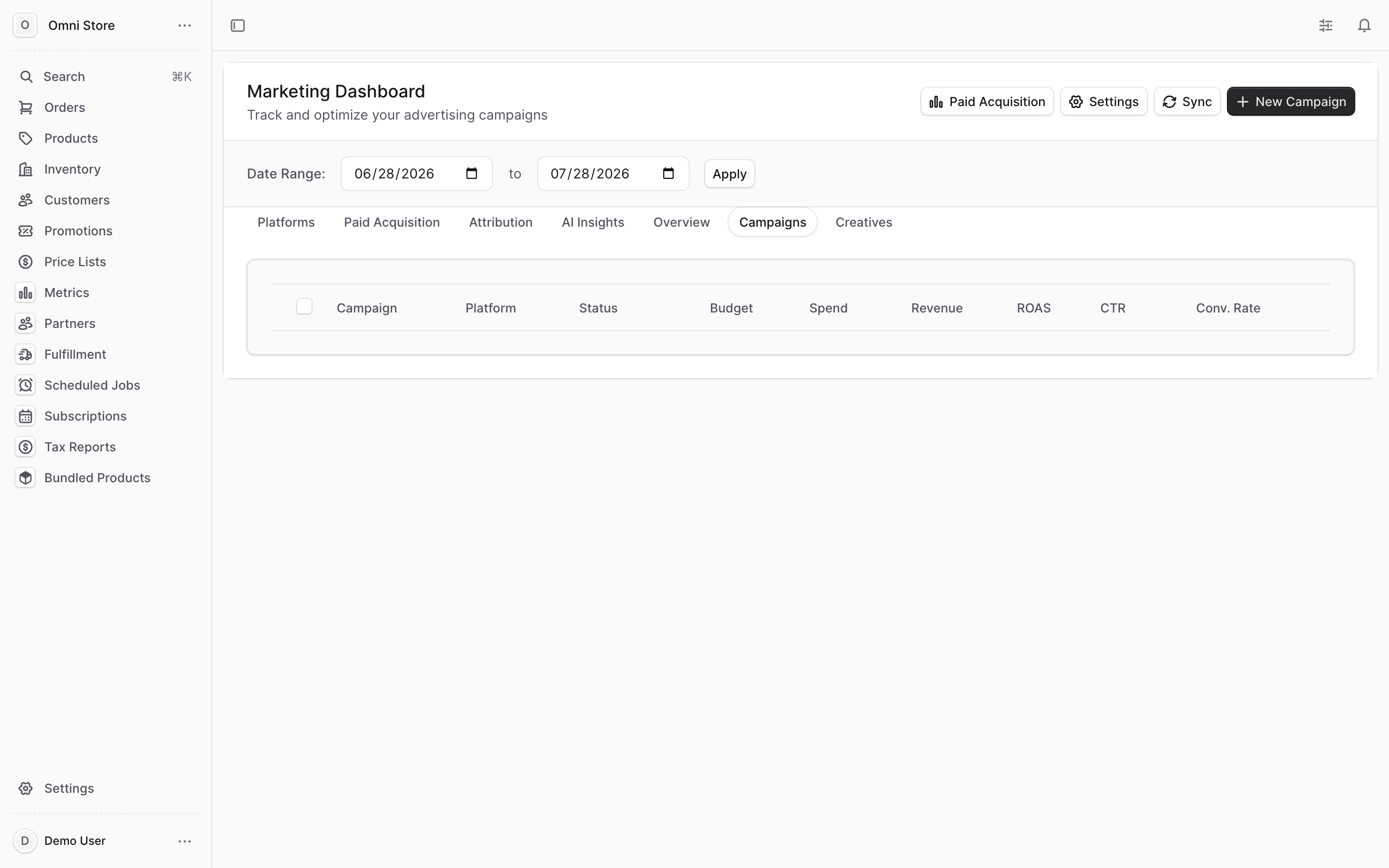
Click any campaign row to open its detail page and see a deeper breakdown of performance over time.
3. Track spend by platform#
The Marketing dashboard shows a Spend by Platform widget at the top, which aggregates spending across all your ad platforms (Google Ads, Facebook, TikTok, etc.).
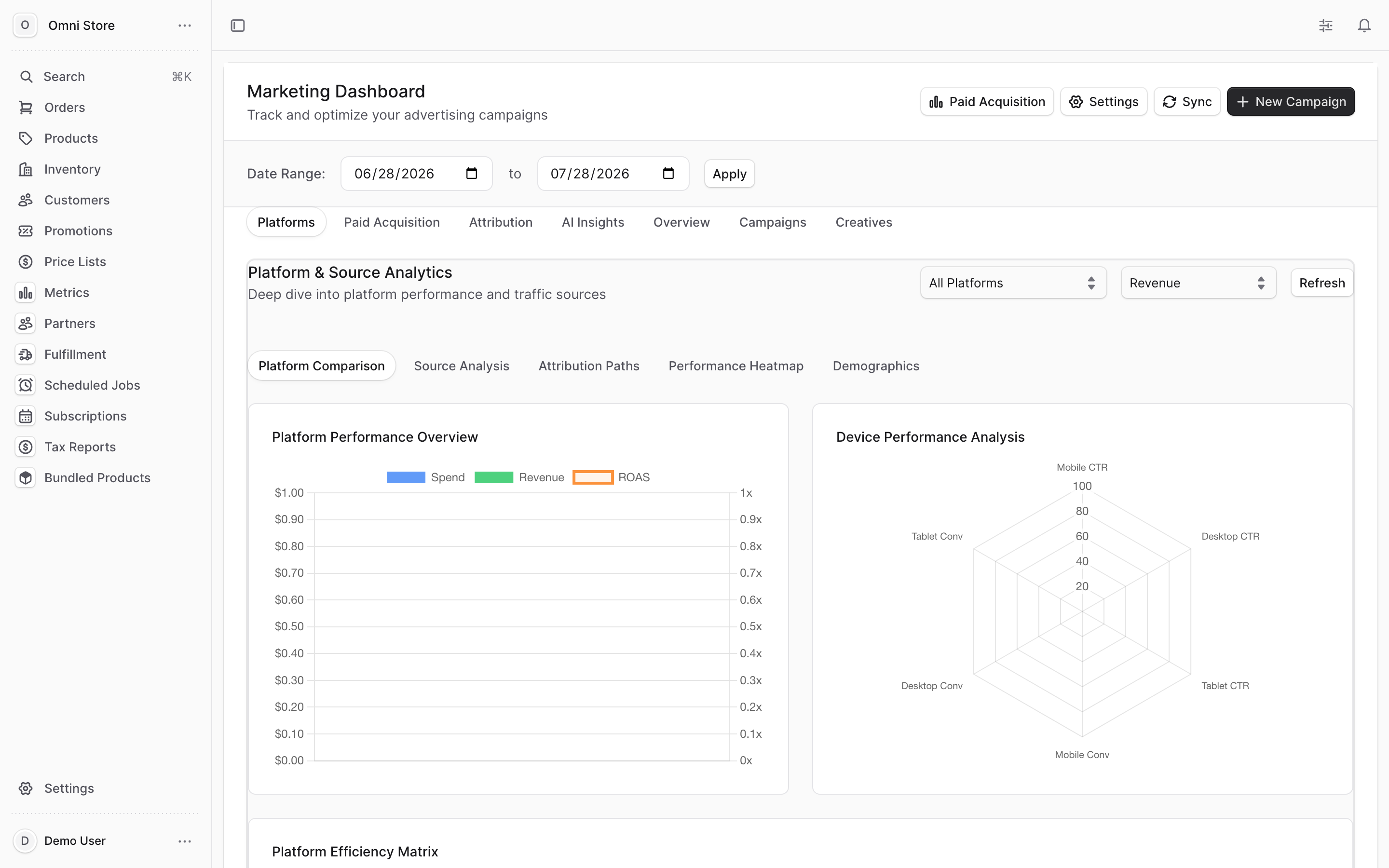
This gives you a quick view of:
- Which platforms are getting the most budget
- How much you've spent on each platform this month or period
- Total ad spend across all channels
Use this view to balance your marketing budget and identify which channels are most cost-effective.
4. View paid acquisition metrics#
Click Paid Acquisition to see how many customers came to your store through paid ads and what they spent.
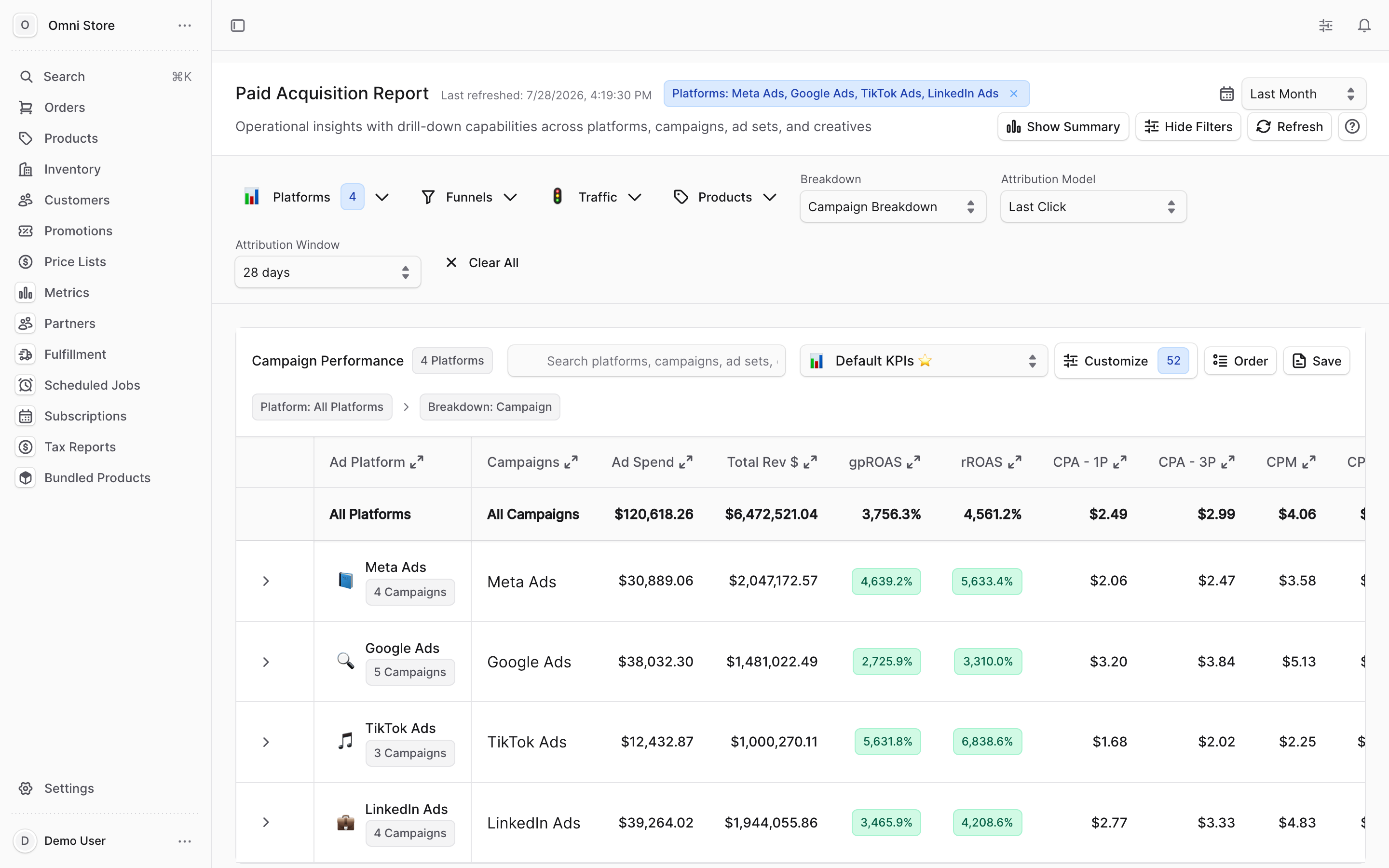
The Paid Acquisition view shows:
- New customers acquired — how many customers came from paid channels
- First-time purchase value — the average and total revenue from those customers
- Breakdown by platform — which ad platforms drove the most acquisitions
- Date range filter — view data for specific time periods
Tip: A customer is counted as "acquired" on the date of their first purchase. If they came from a paid ad but didn't buy for several days, they'll appear in the acquisition report on the purchase date, not the click date.
5. Configure marketing settings#
Click Settings in the Marketing section to manage integrations and how marketing data is tracked.
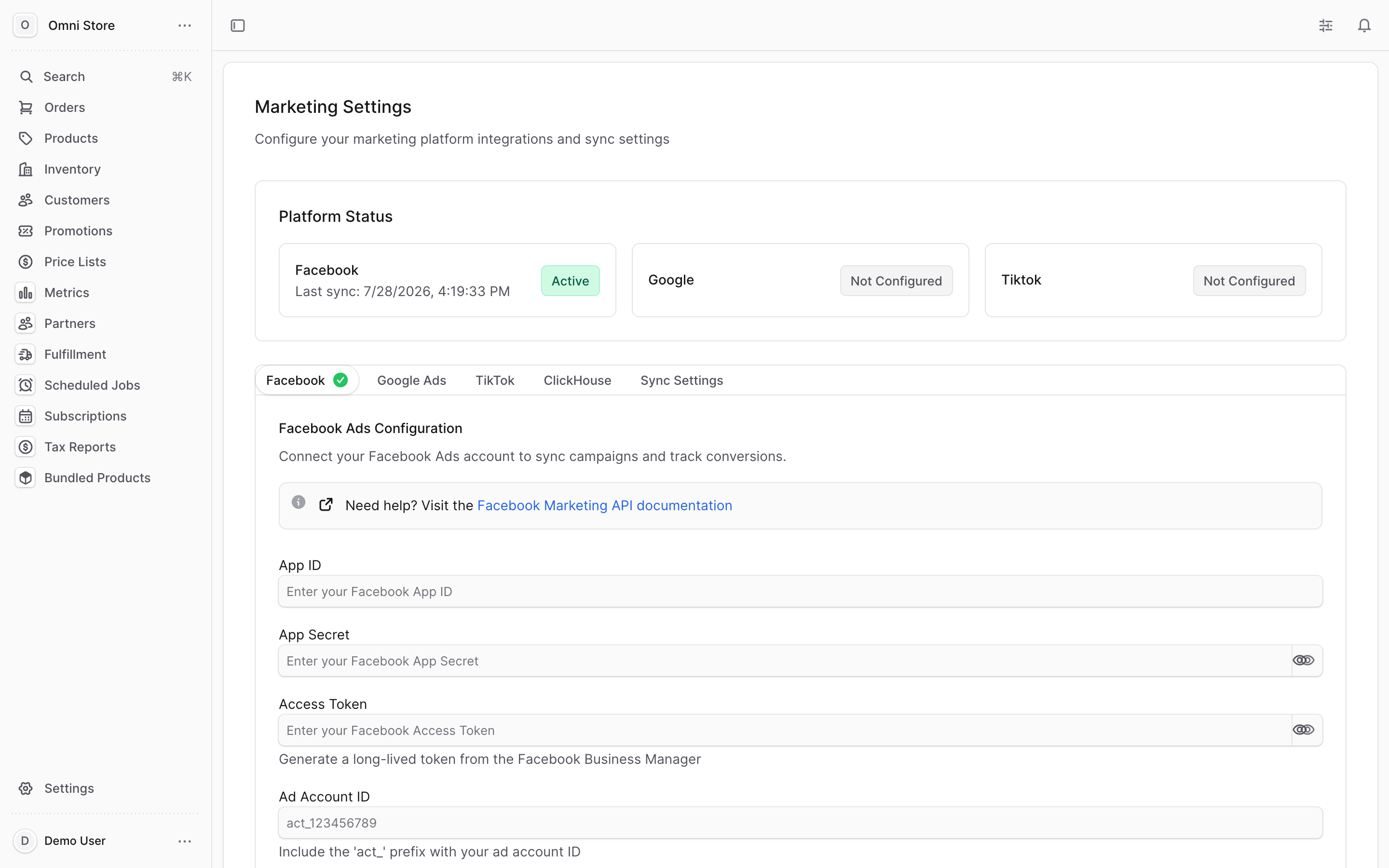
From Settings you can:
- Connect ad platforms — link your Google Ads, Facebook Ads, TikTok, or other ad accounts
- Set conversion tracking — configure how purchases and other customer actions are tracked
- Manage permissions — control who on your team can view or edit marketing campaigns
6. Note: deeper marketing analytics#
Some marketing analytics — like detailed creative performance, audience segmentation, or attribution modeling — may live in a separate marketing analytics tool. Check your team's documentation or contact your administrator if you're looking for reports that aren't in the OmniCart admin dashboard.
The admin dashboard focuses on spend tracking, campaign status, and basic acquisition metrics. For advanced analysis, you may need to access a dedicated analytics or creative management platform.
Quick reference#
| Task | Where to find it |
|---|---|
| See all campaigns | Marketing → Campaigns → view list with spend and performance |
| View campaign details | Campaigns → click any campaign row to open its performance page |
| Check spending by platform | Marketing → view the Spend by Platform widget on the main page |
| Track new customers | Marketing → Paid Acquisition → see customers acquired and their first-purchase value |
| Filter by date range | Paid Acquisition or Campaigns → use the date range picker to view specific periods |
| Connect an ad platform | Marketing → Settings → link your Google Ads, Facebook, or TikTok account |
| Configure tracking | Marketing → Settings → set up conversion tracking for purchases and other actions |
Common troubleshooting#
| Problem | Why it happens | How to fix it |
|---|---|---|
| No campaigns are showing | Campaigns haven't been created yet or they're hidden in a filter | Check that the date range includes when campaigns were active; create a new campaign if none exist |
| Spend numbers look wrong or zero | Ad platform account isn't connected or sync hasn't run yet | Go to Settings and verify your ad account is connected and synced within the last few hours |
| Acquired customers total is lower than expected | Tracking code may not be installed or customers clicked ads but didn't purchase through a tracked link | Check Settings to confirm conversion tracking is enabled; verify the storefront has the tracking code installed |
| I can't see the Marketing section | You don't have marketing access or the section isn't enabled for your store | Ask your administrator to grant marketing permissions or enable the Marketing section |