Fulfilling an Order
For: operations staff shipping orders directly from the order detail page What you'll learn: how to allocate items, fulfill orders, add tracking, and understand fulfillment status — all without leaving the order view.
This is a how-to guide for the dashboard, not the API. If you're building an automated integration instead, see the Usage Guide.
Before you start#
You'll need an admin login for your store and the Orders section visible in the left navigation. If you don't see it, ask your administrator to grant order-management access.
Throughout this guide, screenshots use a demo store — the names, orders, and addresses shown are fake.
1. Allocation vs fulfillment#
When an order arrives, its items must pass through two states before they ship:
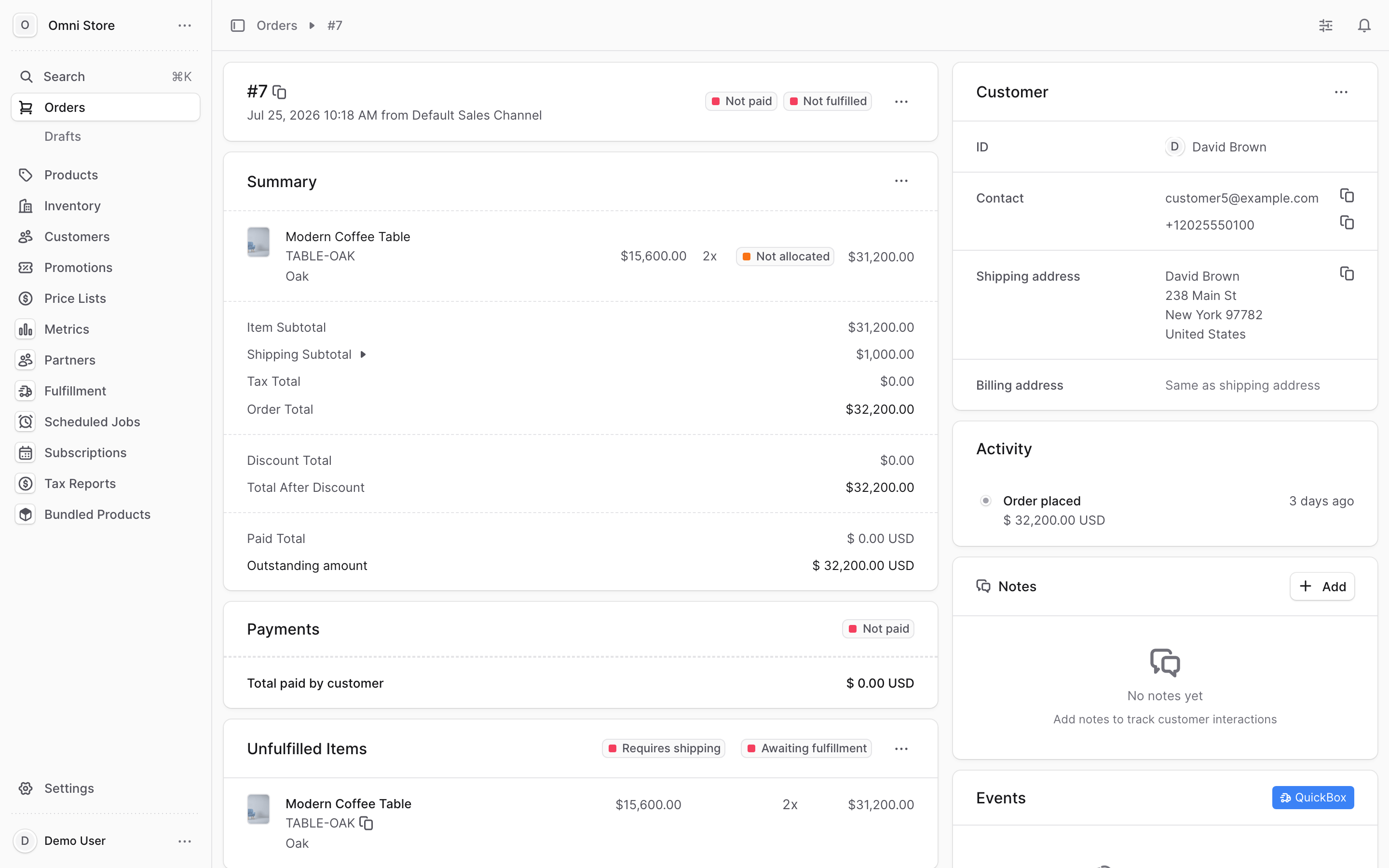
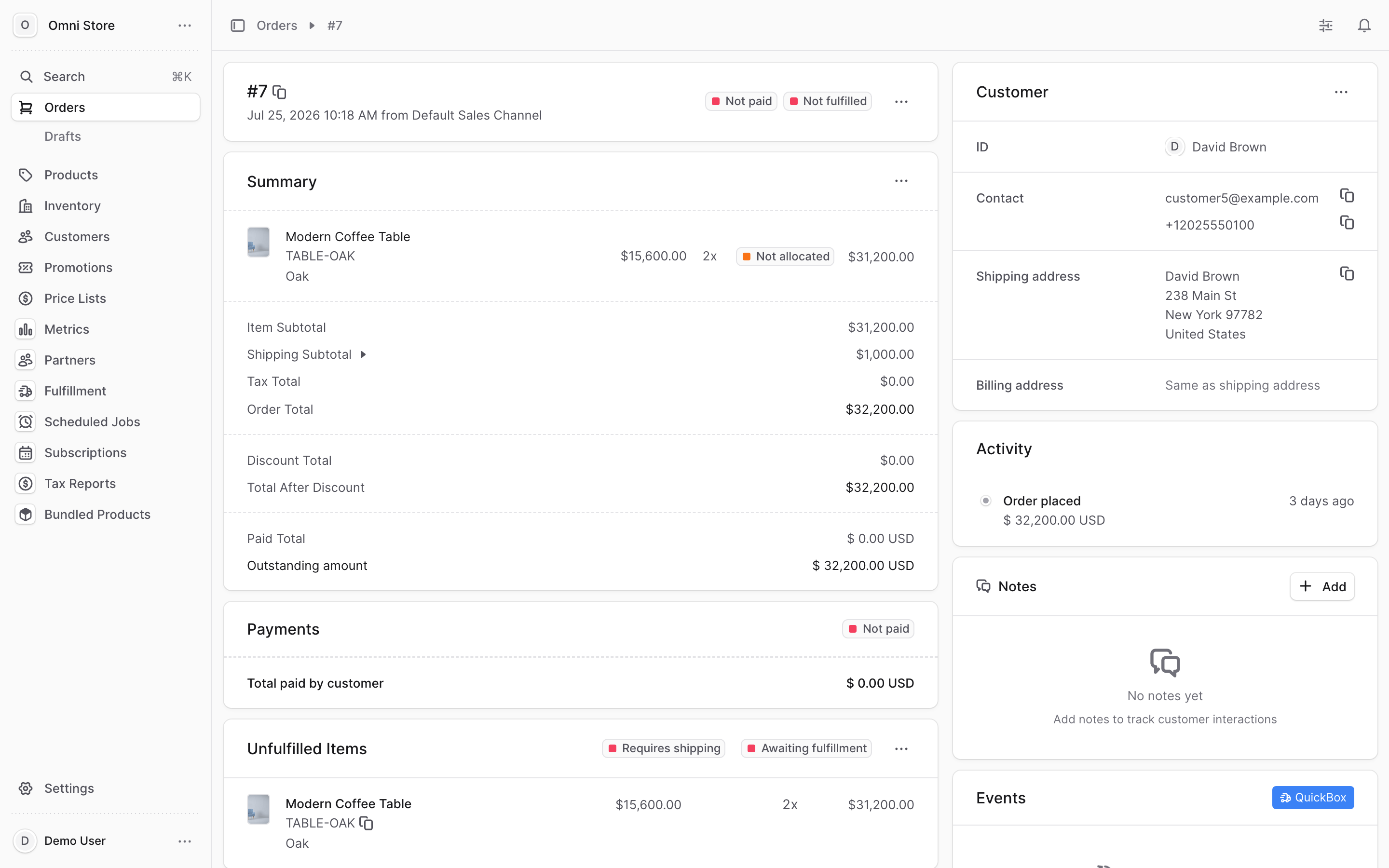
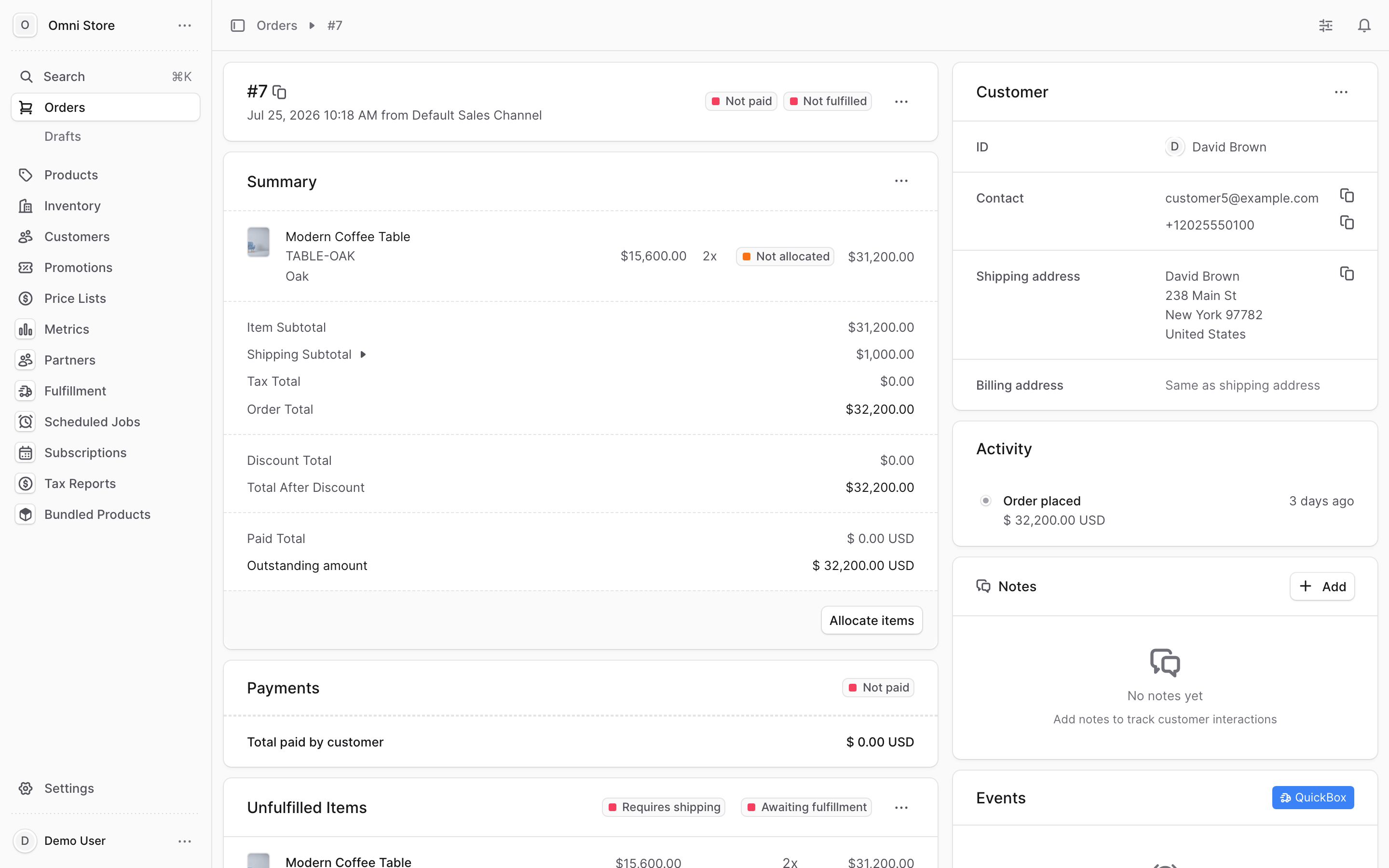
Allocation — reserving inventory for the order. Items show Not allocated if no stock has been set aside. Allocate items first; then they can ship.
Fulfillment — marking items as shipped and adding a tracking number. Once allocated, click Fulfill items to ship them and record their tracking.
2. Allocate items to the order#
If the order shows Not allocated in the Summary or Unfulfilled Items panel:
- Click the Allocate items button (or the allocation prompt in the Summary section).
- A dialog opens showing each line item and its quantity.
- Review the quantities (the system suggests available inventory).
- Click Allocate to reserve stock for this order.
Once allocated, the order is ready to fulfill. The Unfulfilled Items panel now shows each item's status as "Awaiting fulfillment".
Tip: If allocation fails (e.g., an item is out of stock), check with the warehouse. You may need to put the order on hold, restock the item, or ship a substitute.
3. Fulfill items from the order detail page#
After items are allocated, you're ready to ship.
- Open the order from the Orders list.
- Click the "..." menu in the top right and select Fulfill items.
- A fulfillment dialog appears showing every line item in the order.
In the dialog, you'll see:
- Item name and SKU
- Quantity ordered
- Quantity to fulfill — a field where you enter how many you're shipping now
Enter the quantity for each item you're shipping in this shipment. You can fulfill all items at once or partial quantities (the remainder ships later).
4. Choose quantities and add tracking#
In the fulfillment dialog:
- For each line item, enter the quantity to fulfill.
- Below the items, you'll see a field for Tracking number (optional but recommended).
- If you have multiple carriers, select the Carrier from the dropdown.
- Click Fulfill to complete the shipment.
Tip: Always include a tracking number if you have one. It lets the customer follow their shipment and reduces "where's my order" support inquiries.
If you're not sure about the carrier, leave it blank or select the one your warehouse uses by default. The tracking number is what matters most.
5. Reading fulfillment status on the order#
After fulfillment, the order shows updated status badges and panels:
Fulfillment badge at the top
- Not fulfilled — nothing has shipped yet
- Fulfilled — all items have shipped
Unfulfilled Items panel
Shows which items still need to ship (if any). After a partial shipment, this panel updates to show the remaining quantities.
Summary section
May show an allocation status like "Allocate items" if some items still haven't been reserved. Once everything ships, this disappears.
6. Partial fulfillment — shipping items over time#
An order can ship in multiple boxes over several days. This is called a partial fulfillment.
- Open the order and click "..." → Fulfill items.
- In the dialog, enter quantities for only the items shipping now.
- Leave the remaining items at 0 (or blank).
- Add a tracking number for this shipment.
- Click Fulfill.
The order remains in the Unfulfilled Items panel until the last item ships. Each shipment gets its own tracking number, so you can track which items went out when.
Repeat this process for the remaining items when they're ready to ship.
Tip: Partial shipments are normal and expected — they happen when backorders ship separately or when a warehouse splits an order across multiple boxes for efficiency.
7. How this relates to the warehouse queue#
This page covers fulfilling orders from the individual order detail view — for quick one-off shipments or manual overrides.
For daily warehouse operations — working through a queue of orders that need to ship — see the Fulfillment Operations guide. That guide covers:
- The daily "Awaiting Shipment" queue
- Batch fulfillment workflow
- Sync status and troubleshooting
- When orders get flagged for review
Both workflows (order-by-order and queue-based) update the same fulfillment records. Use whichever fits your team's process.
Quick reference#
| Task | How to do it |
|---|---|
| Allocate items | Open order → click Allocate items → review quantities → Allocate |
| Fulfill an order | Open order → click "..." → Fulfill items → enter quantities → add tracking → Fulfill |
| Ship only some items | In the fulfillment dialog, enter quantities only for items shipping now → Fulfill |
| Check what's shipped | Look at the Unfulfilled Items panel; empty = fully shipped |
| Add tracking later | Re-open Fulfill items, update the tracking field, and save |
| Daily queue workflow | See Fulfillment Operations guide for batch and sync details |