Getting Started
For: new store managers, operations staff, and support team members
What you'll learn: how to log in to the OmniCart admin dashboard, navigate its core sections, understand access control, and find the guides you need for day-to-day tasks.
Logging in#
Go to /app (or ask your administrator for the URL to your OmniCart admin dashboard). You'll see the login screen.
Enter your email address and password, then click Sign in.
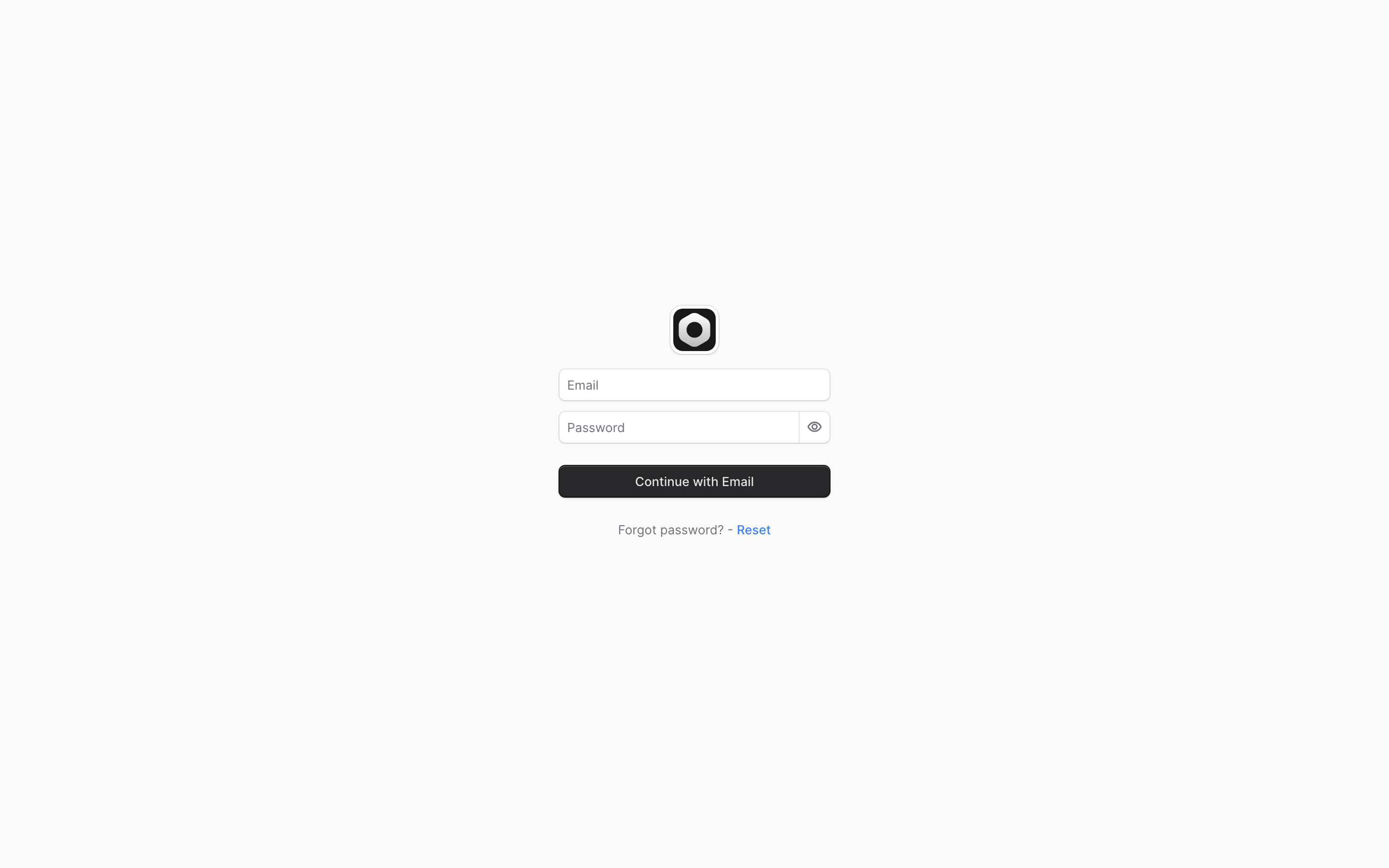
After you log in, you'll land on the dashboard home page — a quick-reference view of recent orders, key metrics, and shortcuts to your most common tasks.
Finding your way around#
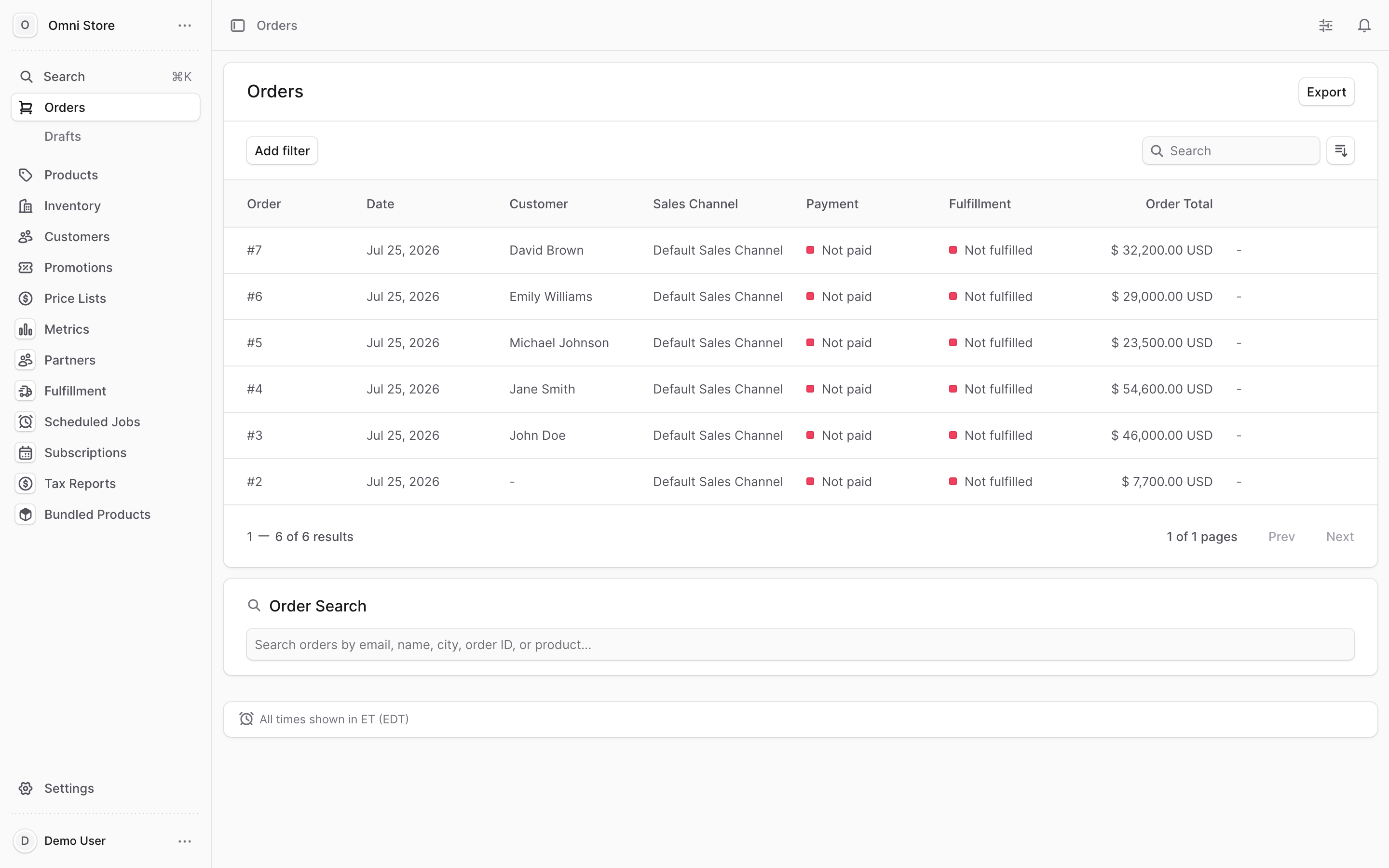
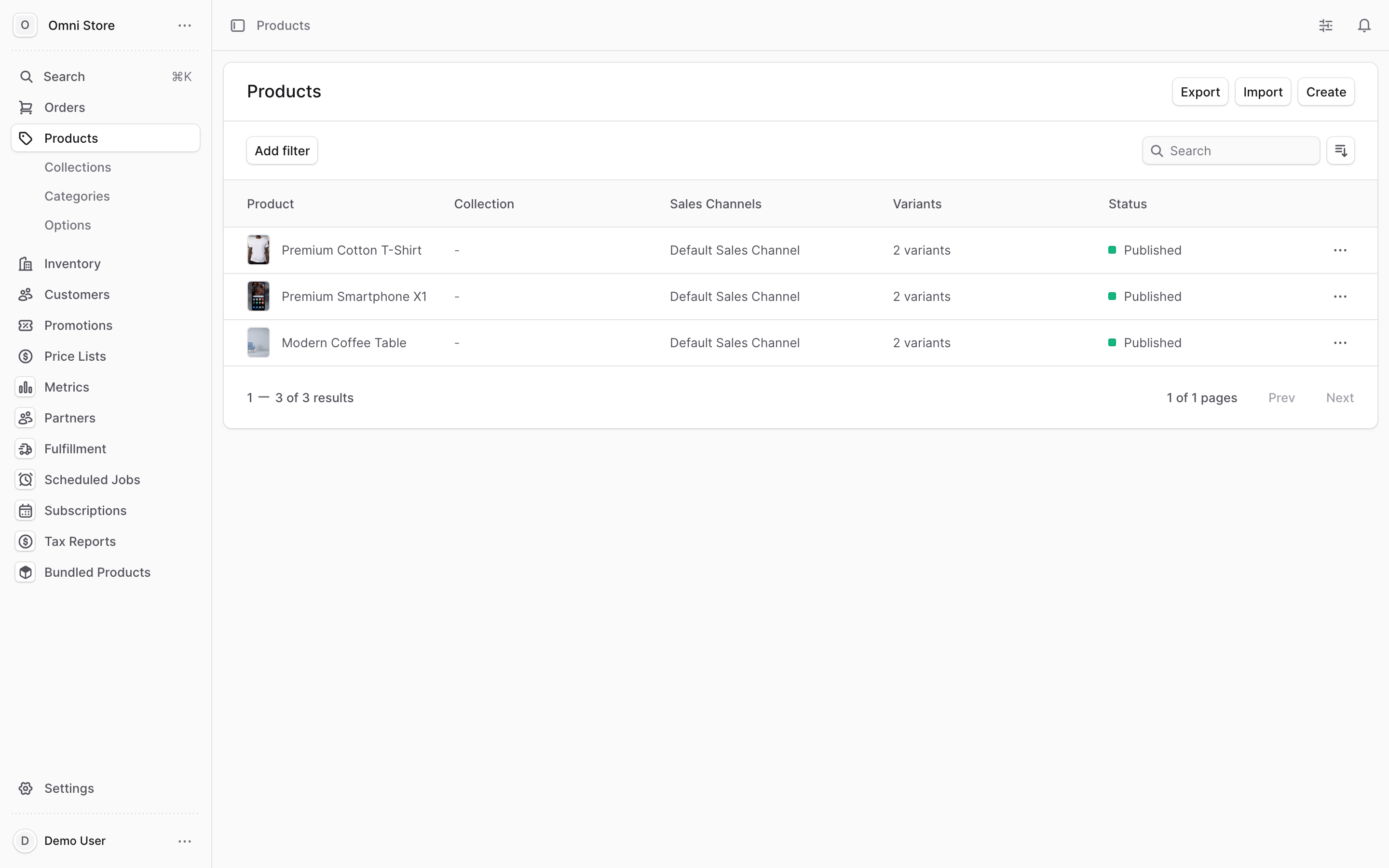
The left-hand navigation contains all the sections of your OmniCart admin. Here's what each one is for:
| Section | What you do there |
|---|---|
| Orders | Find, read, and process customer orders; manage payment and fulfillment; issue refunds or cancellations |
| Products | Create and edit products, set prices and descriptions, manage variants and options |
| Customers | View customer profiles, order history, and contact information |
| Fulfillment | Work the daily shipping queue, track order fulfillment, and read sync status with your warehouse |
| Purchase Orders | Create and manage purchase orders for your suppliers |
| Support | Manage customer support tickets and inquiries |
| Reviews | Moderate customer product reviews and ratings |
| Partners | Set up and manage affiliate and partner programs |
| Marketing | Track campaigns, conversions, and marketing performance |
| Metrics | View dashboards and analytics for your store's performance |
| Sites | Manage your storefronts and sales channels |
| Brands | Organize products by brand |
| Bundled Products | Create and manage product bundles |
| Flow Builder | Automate workflows and multi-step operations |
| Free Shipping | Set up and manage free shipping rules and thresholds |
| Settings | Manage API credentials, user roles and permissions, integrations, email templates, and more |
What you can see depends on your role#
OmniCart uses role-based access control (RBAC) to keep everyone focused on what they need to do. Your admin account is set up with specific permissions, so you may not see all sections in the navigation.
For example, a fulfillment specialist might see Orders, Fulfillment, and Support, but not Products or Partners. That's by design — not an error.
Tip: If you need access to a section you don't see, ask your administrator. They can grant you the right permissions in Settings > Permissions.
A few things everyone should know#
Prices are decimals, not cents. Throughout the dashboard, $19.99 appears as 19.99, not 1999. This applies to all prices you see or enter — product prices, order totals, refund amounts, and shipping costs.
Your changes are usually live immediately. When you edit a product price or add a customer note, it takes effect right away. There's no "publish" or "save and deploy" step in most cases.
There's an AI assistant built in. OmniCart includes an embedded AI assistant called ZOI that can help you with many tasks through natural-language chat — everything from creating a bulk discount to finding an order to generating an email. A separate detailed guide for using it is coming soon.
Where to go next#
Pick your role or task:
Shipping and fulfillment? Start with Fulfillment Operations — learn how to work the daily queue and spot orders stuck in sync.
Processing orders, refunds, and cancellations? See Order Processing — find an order, manage payment status, issue a refund, or cancel an order.
Setting up products and inventory? See Products & Inventory — create products, set prices and variants, and manage stock.
Managing support tickets? See Support Tickets — open a ticket, add notes, and track resolution.
Need API docs instead? If you're integrating a system or automating workflows, check the Admin API Reference or the Usage Guide.
Quick reference#
| What you need | Where to go |
|---|---|
| Log in | Go to /app and enter your email + password |
| Find an order | Orders section, use search or filters |
| Ship an order | Fulfillment section, work the queue |
| Edit a product | Products section, click the product |
| See who can access what | Settings > Permissions (admin only) |
| Report a bug or ask for help | Contact your administrator or support team |
| Lost? Need more help? | See the guide for your task above, or email support@omnicart.cc |