Partners & Commissions
For: affiliate and partner managers who review commissions and send partner payouts
What you'll learn: how to read the commission ledger, approve or decline pending commissions, add notes, export records, and send approved commissions to Deel for payout — all from the admin dashboard.
This is a how-to guide for the dashboard, not the API. If you're building an automated integration instead, see the Usage Guide.
Before you start#
You'll need an admin login for your store and the Partner Commissions page visible in the left navigation. If you don't see it, ask your administrator to grant Partners access.
Throughout this guide, screenshots use a demo store — the partner names, offers, and commission amounts shown are fake.
The commission workflow is a review-then-pay flow: commissions arrive as pending, a manager approves or declines each one, and only approved commissions can be sent for payout.
1. Open the Partner Commissions page#
Log in to the admin dashboard, then open Partner Commissions from the left navigation.
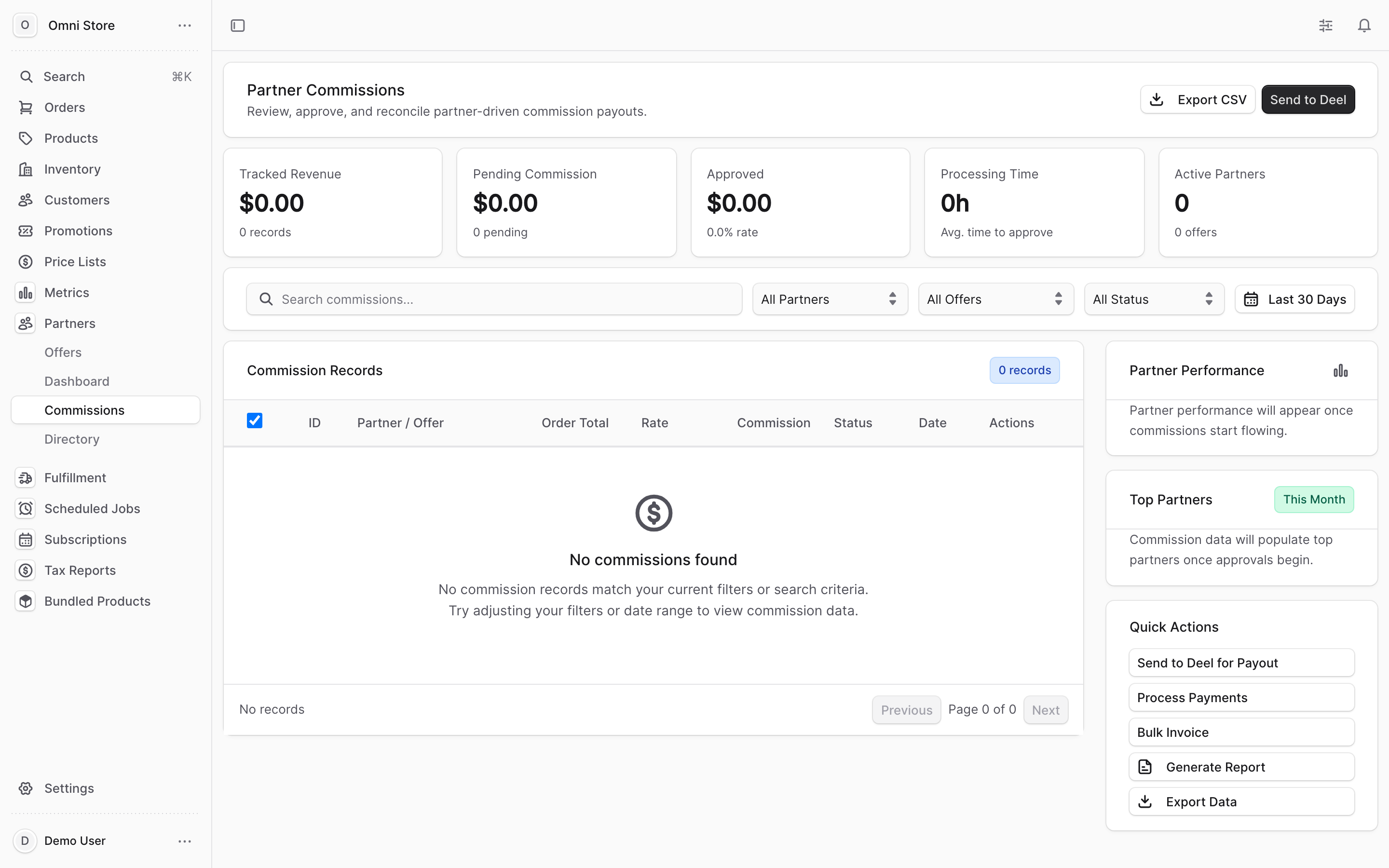
The page opens on the commission ledger, with a row of summary cards across the top and the full list of commission records below.
2. Read the summary cards#
Five cards across the top give you a snapshot of the records currently in view (they respect your filters):
| Card | What it shows |
|---|---|
| Tracked Revenue | Total order revenue behind the commissions in view, plus the record count |
| Pending Commission | Total dollar value of commissions still awaiting review, plus how many are pending |
| Approved | Total approved commission value and the approval rate |
| Processing Time | Average time from a commission arriving to being approved |
| Active Partners | How many partners (and offers) appear in the current view |
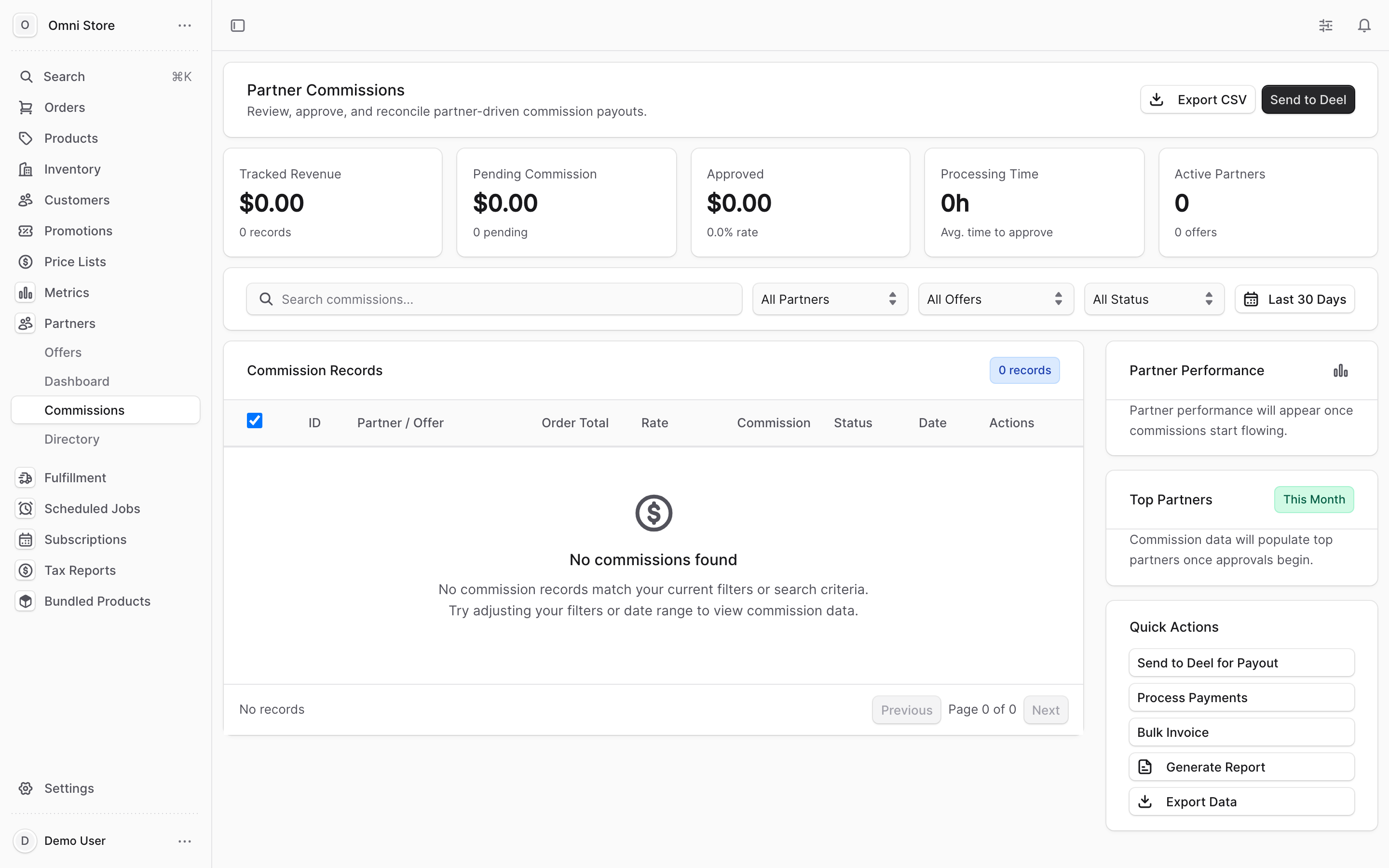
Tip: The cards recalculate as you change the filters below, so you can scope them to a single partner, offer, status, or date range.
3. Find the commissions you need#
Use the controls above the ledger to narrow the list:
| Control | What it does |
|---|---|
| Search | Type a commission ID, order ID, partner name, or offer name |
| Partner | Show commissions for one partner, or all partners |
| Offer | Show commissions tied to one offer, or all offers |
| Status | Filter to Pending, Approved, Declined, or Paid |
| Date range | Today, Last 7 / 30 / 90 Days, This Month, or Last Month |
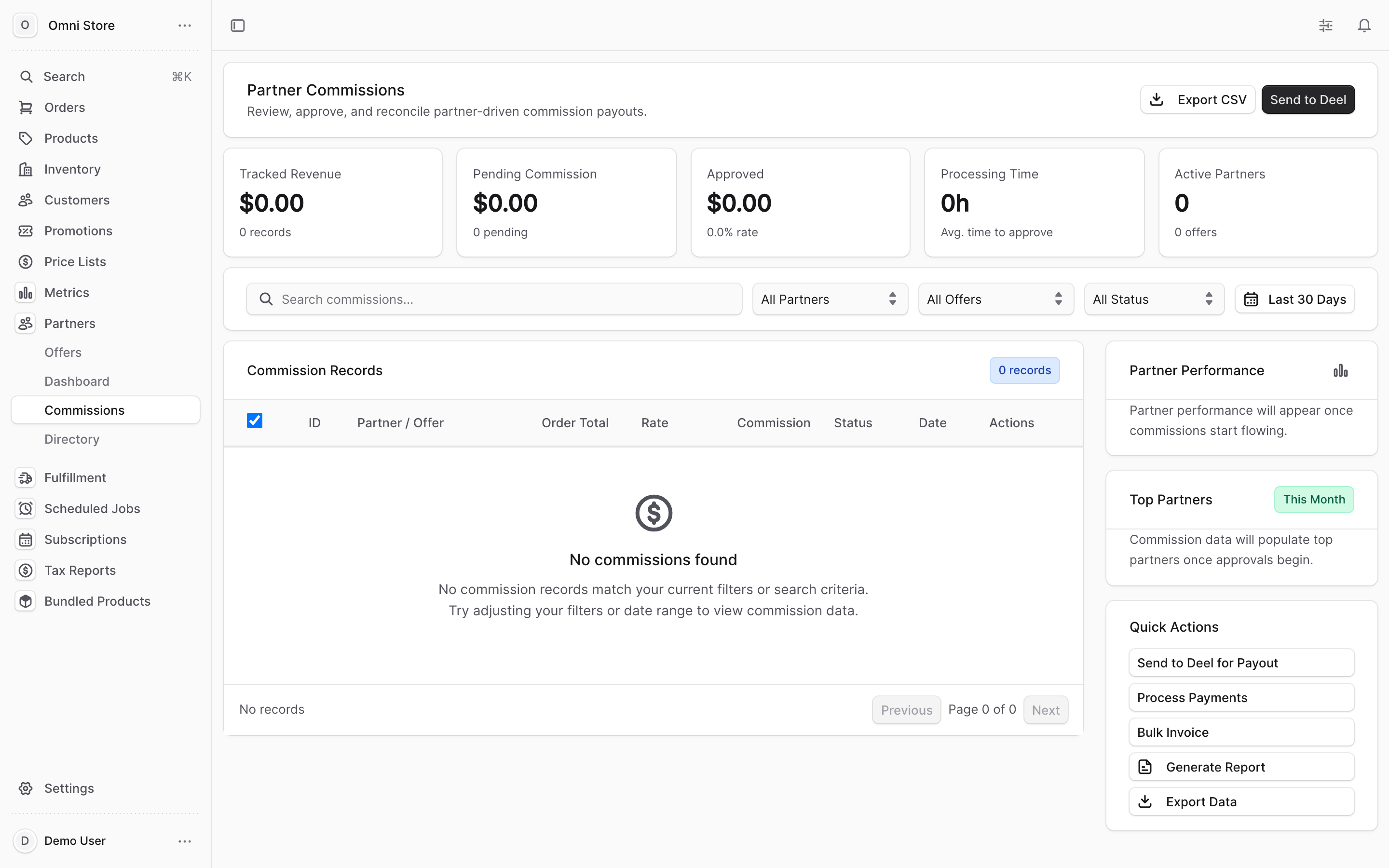
Each row in the ledger shows the commission ID and order ID, the partner and offer, the order total, the commission rate, the commission amount, its status, and the date. The list is paginated — use Previous / Next at the bottom to move through pages.
Tip: A commission with a negative amount is a clawback — a commission reversed because its order was refunded. Clawback rows are highlighted and labelled so you can spot them at a glance.
4. Review a pending commission#
Pending commissions are the ones waiting on you. In each pending row you'll see two quick actions:
- A check to approve the commission
- An X to decline it
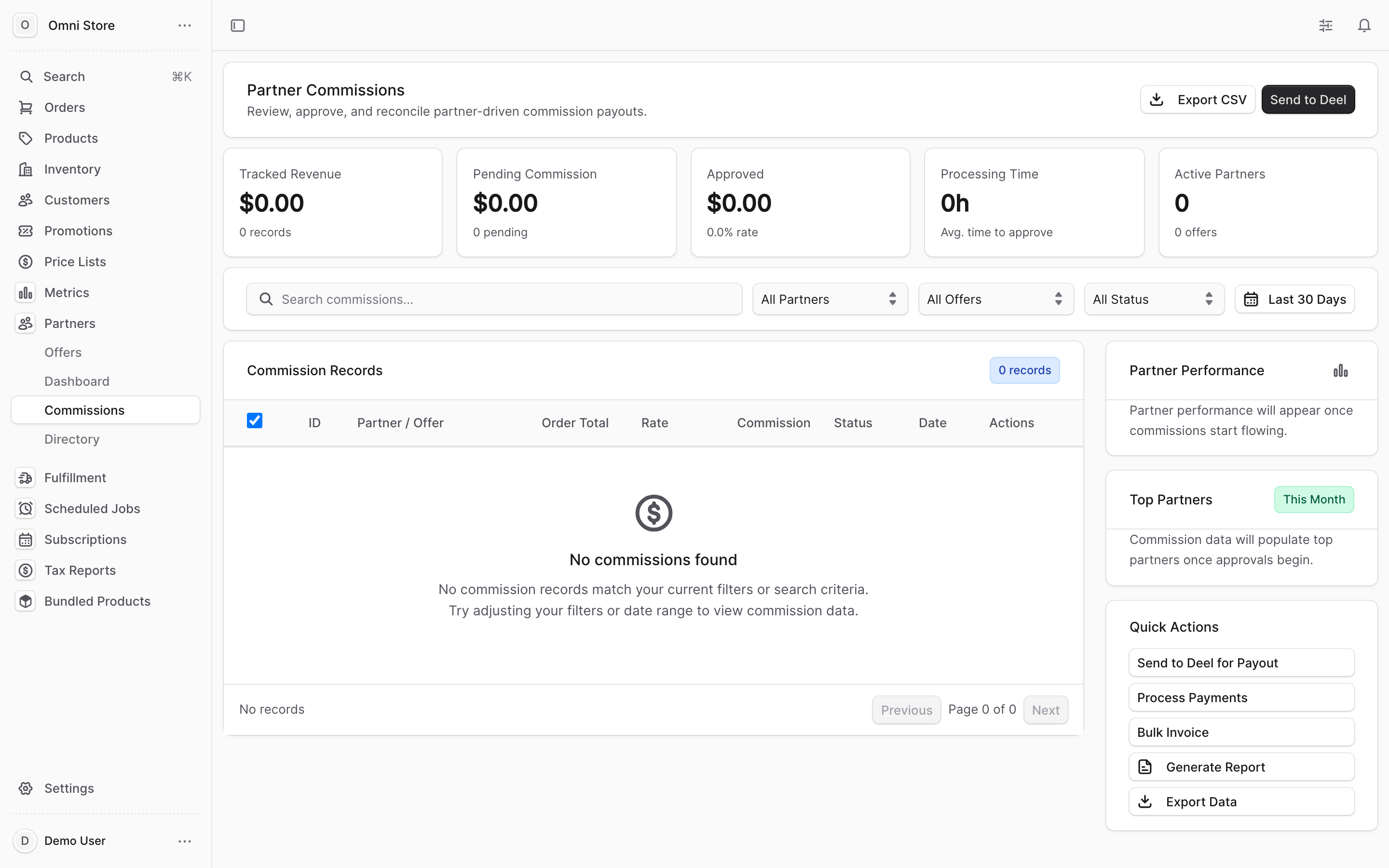
Click the more (⋯) control on a row to expand its detail, where you can:
- Add or edit a note — an internal note stored on the commission record
- Read the decline reason — shown here once a commission has been declined
Approving a commission moves it to Approved and makes it eligible for payout. Only approved commissions can be paid.
5. Decline a commission#
When you click decline, a panel opens where you can record an optional reason (for example, "Order refunded in full, commission clawed back"). The reason is saved on the commission record so anyone reviewing it later can see why.
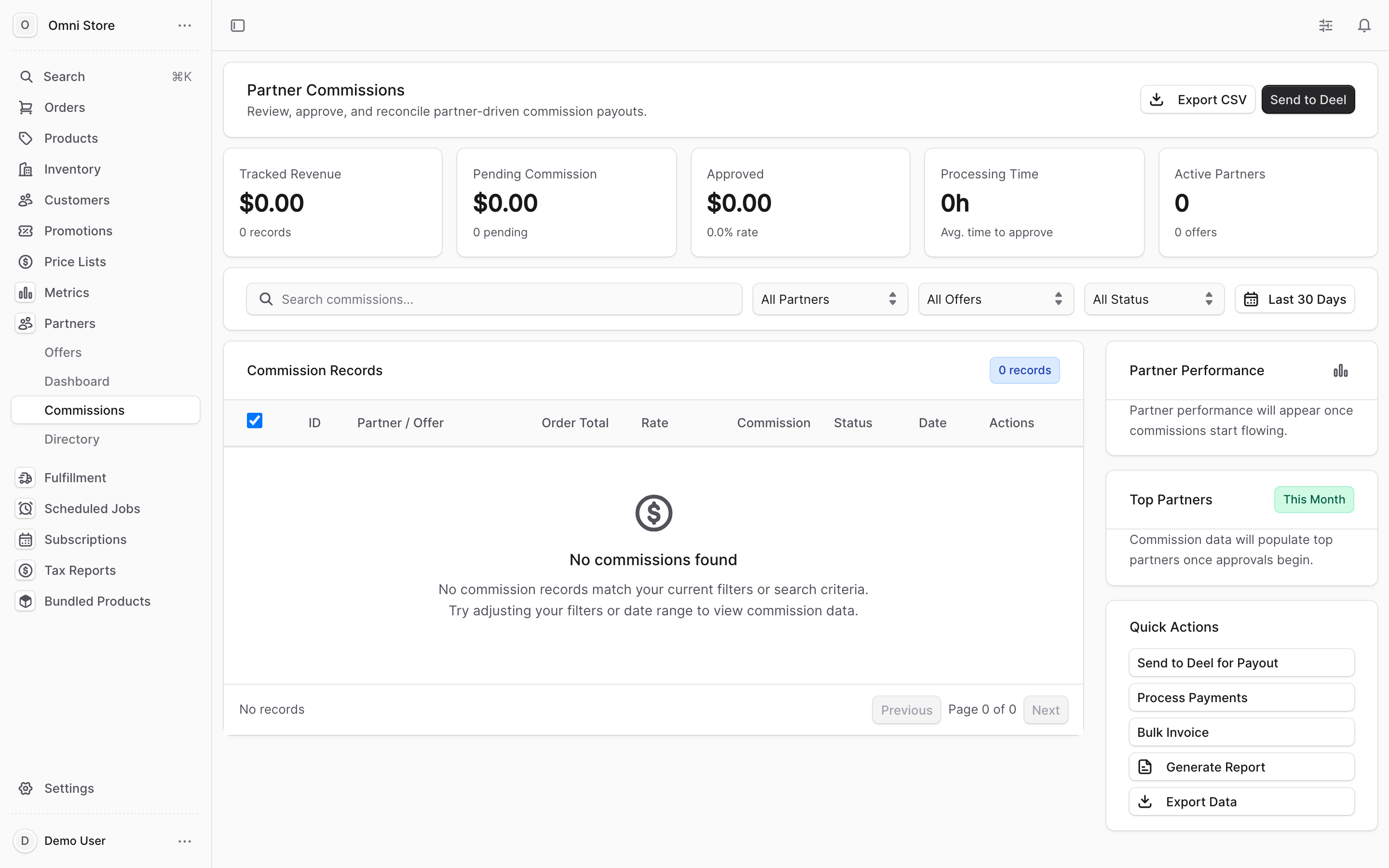
Confirm to decline, or cancel to leave the commission pending.
Caution: Declining is the reversal step in this workflow — a declined commission will not be paid. Record a reason so the decision is traceable, especially for clawbacks tied to refunds.
6. Approve or decline in bulk#
To process several commissions at once, tick the checkbox on each pending row (or the header checkbox to select all pending rows on the page). A bar appears with:
- Approve All — approve every selected commission
- Decline All — decline every selected commission (you'll be asked for an optional reason, applied to all of them)
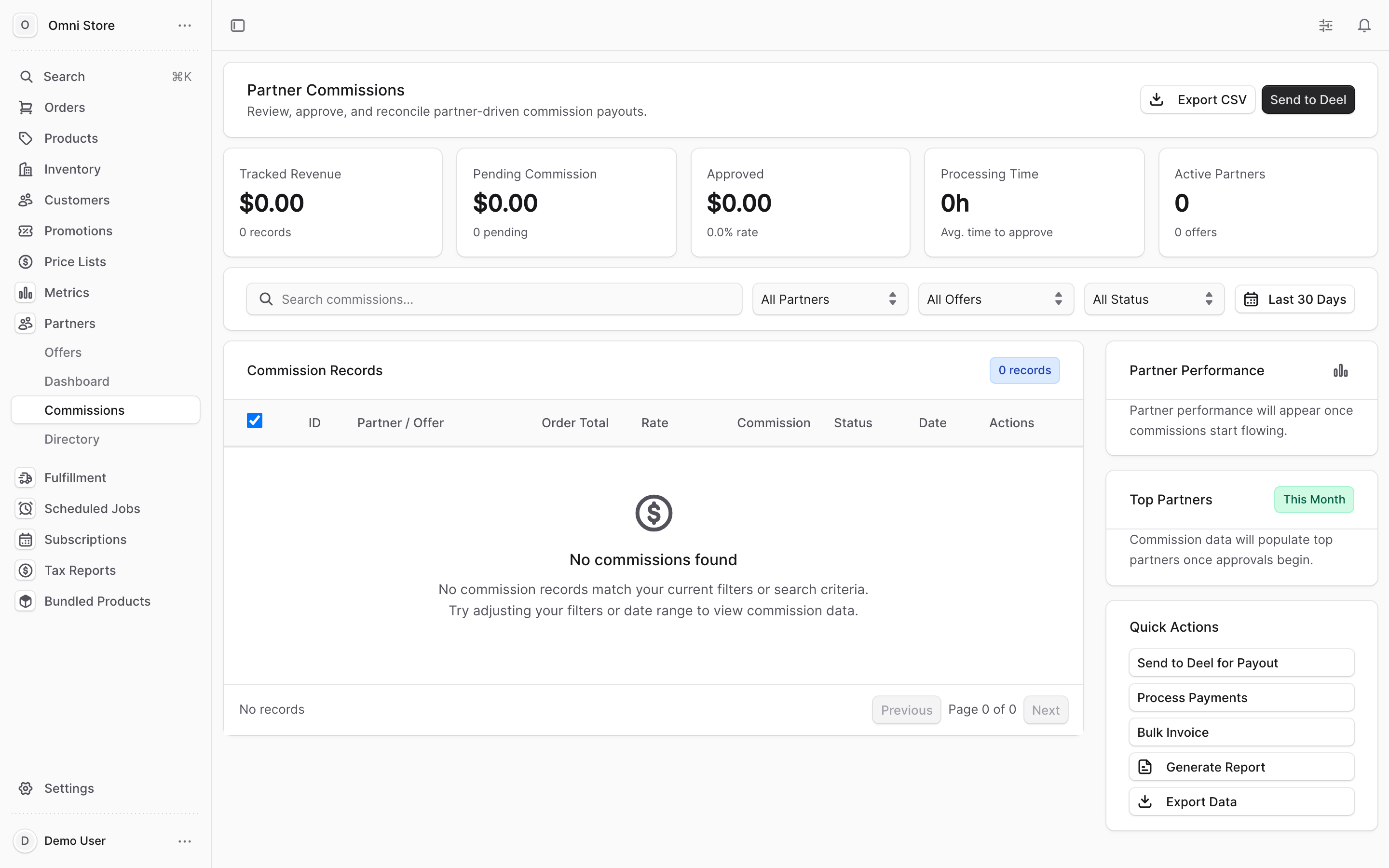
Only pending commissions can be selected — approved, declined, and paid rows aren't selectable.
7. Send approved commissions to Deel for payout#
Payout is a one-click, built-in step. Once you've approved the commissions you want to pay, use Send to Deel (in the page header) or Send to Deel for Payout (in the Quick Actions panel).
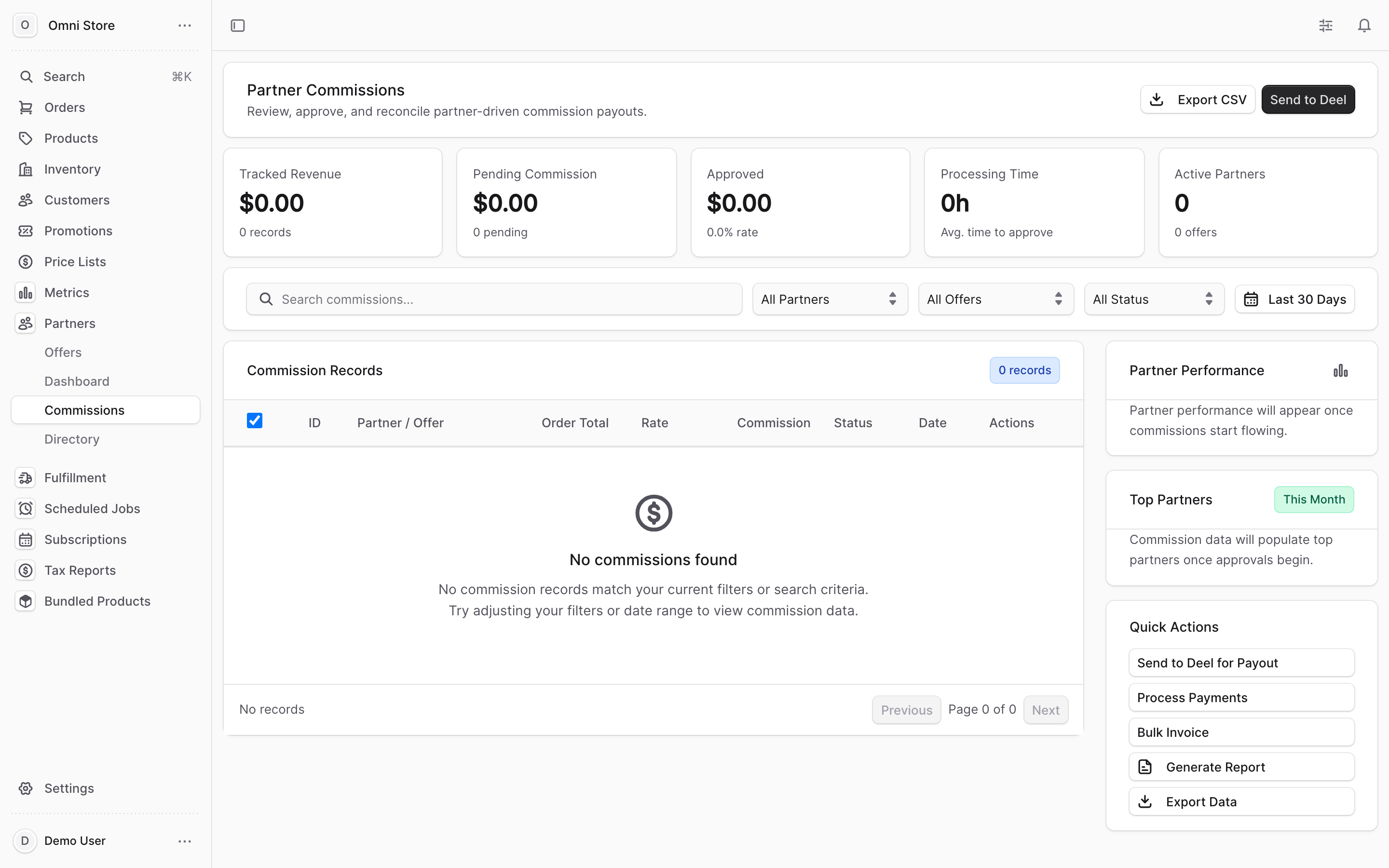
This takes every approved commission in the current view and marks it Paid. There's no separate ACH, PayPal, or accounting-software step to run from this page — approving and then sending to Deel is the whole payout flow.
Caution: Send to Deel acts on all approved commissions currently in view and marks them paid. Before you send, set your filters (partner, offer, date range) so you're paying exactly the commissions you intend to — not more.
8. Export the ledger#
Use Export CSV (in the header or the Quick Actions panel) to download the commissions currently in view as a spreadsheet. The file includes the commission ID, partner, offer, order ID, order total, commission rate, commission amount, status, and date.
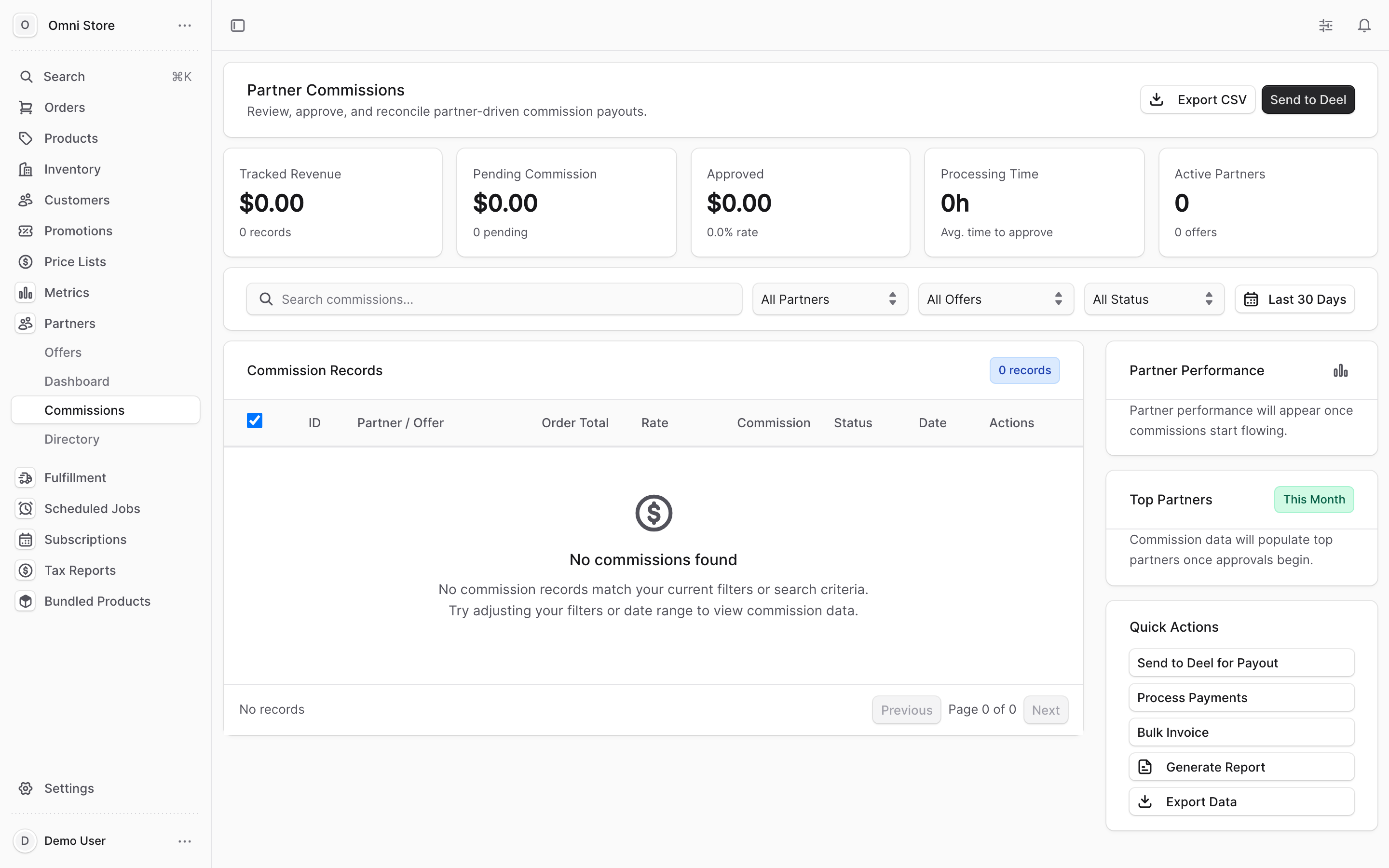
CSV is the supported export format. This is the file you'll reconcile against your own records when confirming what was paid for a period.
Tip: Commission amounts are decimals, so a $5.00 commission reads as
5.00, not500. A rate of10means 10% of the order total.
Quick reference#
| Task | Where to go |
|---|---|
| See all commissions | Partner Commissions page — the ledger loads by default |
| Find one commission | Search box (commission ID, order ID, partner, or offer) |
| Filter by partner / offer / status / date | The controls above the ledger |
| Approve a pending commission | Click the check on its row |
| Decline a commission | Click the X on its row, add an optional reason |
| Add an internal note | Expand the row with the ⋯ control, then add or edit the note |
| Approve or decline many at once | Tick the pending rows, use Approve All / Decline All |
| Pay approved commissions | Send to Deel (header) or Send to Deel for Payout (Quick Actions) |
| Download the records | Export CSV |
| Spot a clawback | Look for a negative amount, highlighted and labelled in the row |