Subscriptions
For: support & operations staff who manage subscriptions in the admin dashboard
What you'll learn: how to find a subscription and change its plan. How to pause, resume, or cancel it. How to work renewals, approvals, and failed payments (dunning). How to refund subscription orders — and where the current limits are.
This is a how-to guide for the dashboard, not the API. If you're building an automated integration instead, see the Usage Guide.
Before you start#
You'll need an admin login for your store and the Subscriptions section visible in the left navigation. If you don't see it, ask your administrator to grant access.
Throughout this guide, screenshots use a test store — the customers, orders, and charges shown are test data.
Two facts shape everything below:
- Billing is automatic. A scheduler charges the saved card when a renewal comes due and creates the renewal order for you. Your job is the exceptions: plan changes, approvals, failed payments, cancellations.
- Some actions are not built yet. Each one is called out in place, and they are collected in Current limitations at the end.
1. Find a subscription#
Click Subscriptions in the left navigation. Each row shows the reference (for example SUB-9), the product and variant, status, frequency with its discount, and the next renewal date.
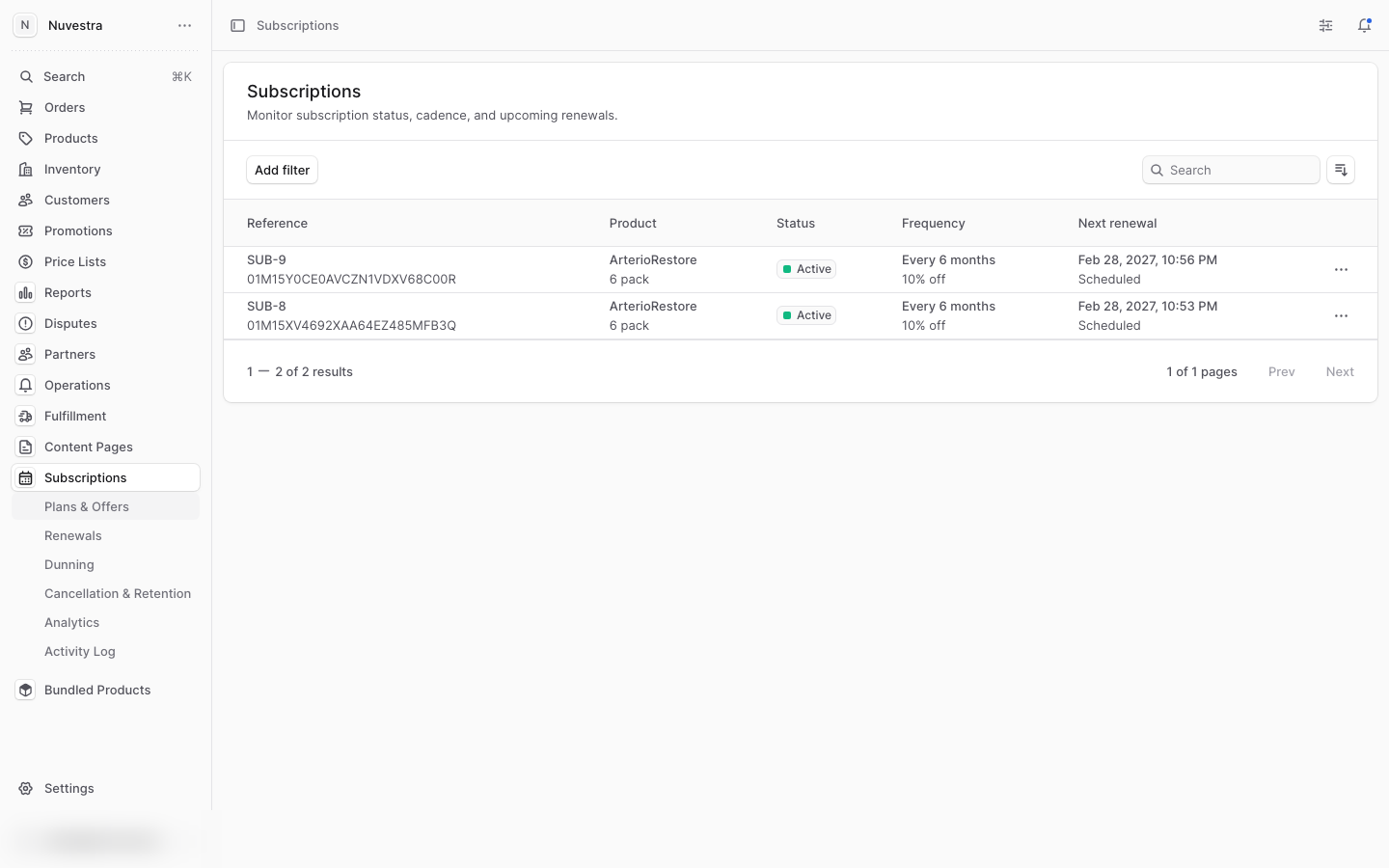
Use the search box or the Status, Trial, Skip next cycle, and Next renewal filters to narrow the list. Click a row to open the subscription.
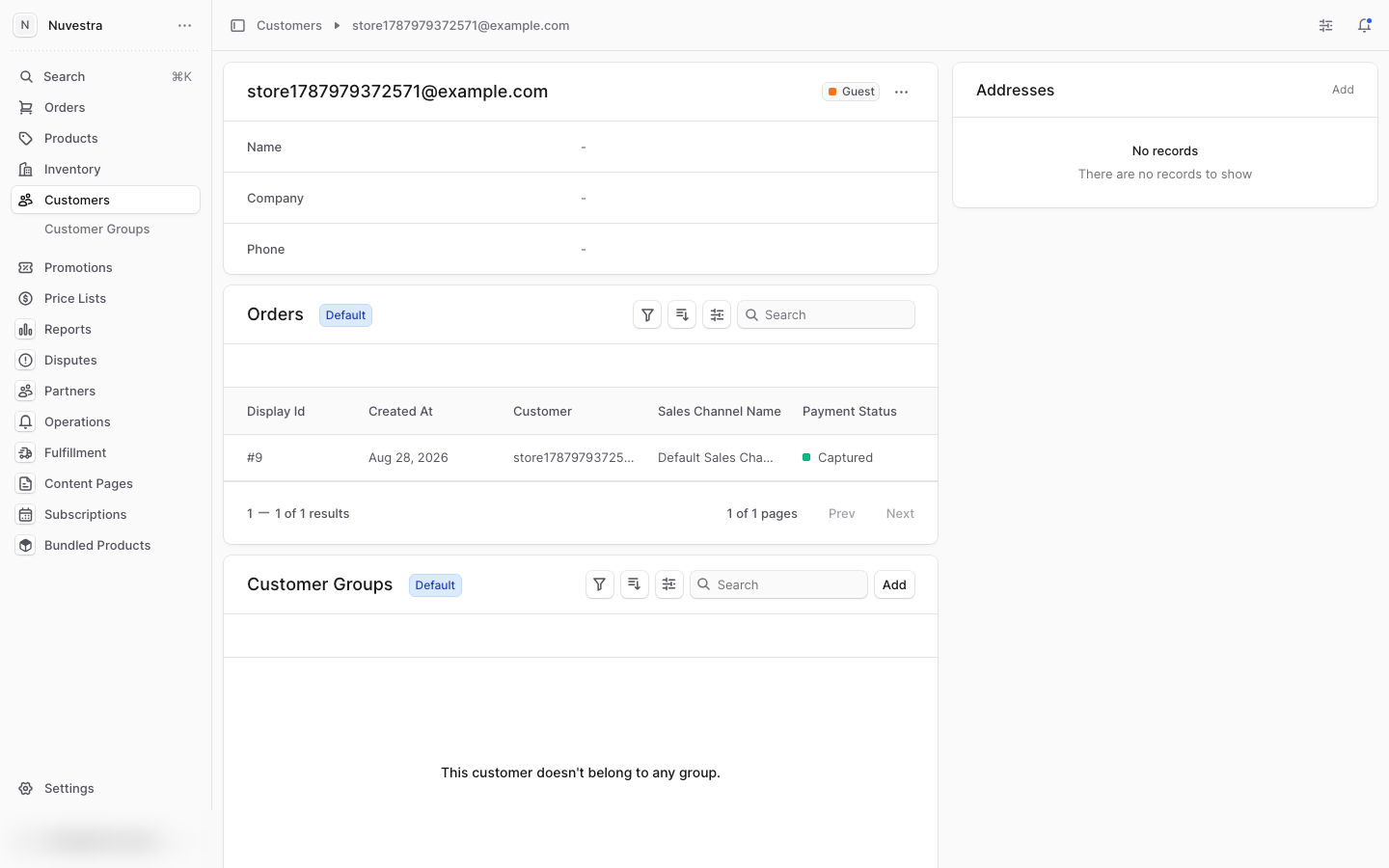
Note: customer pages don't list subscriptions. A customer's page shows their orders only. To see a customer's subscriptions, search here, or open one of their orders and use its Subscription card.
2. Read the subscription page#
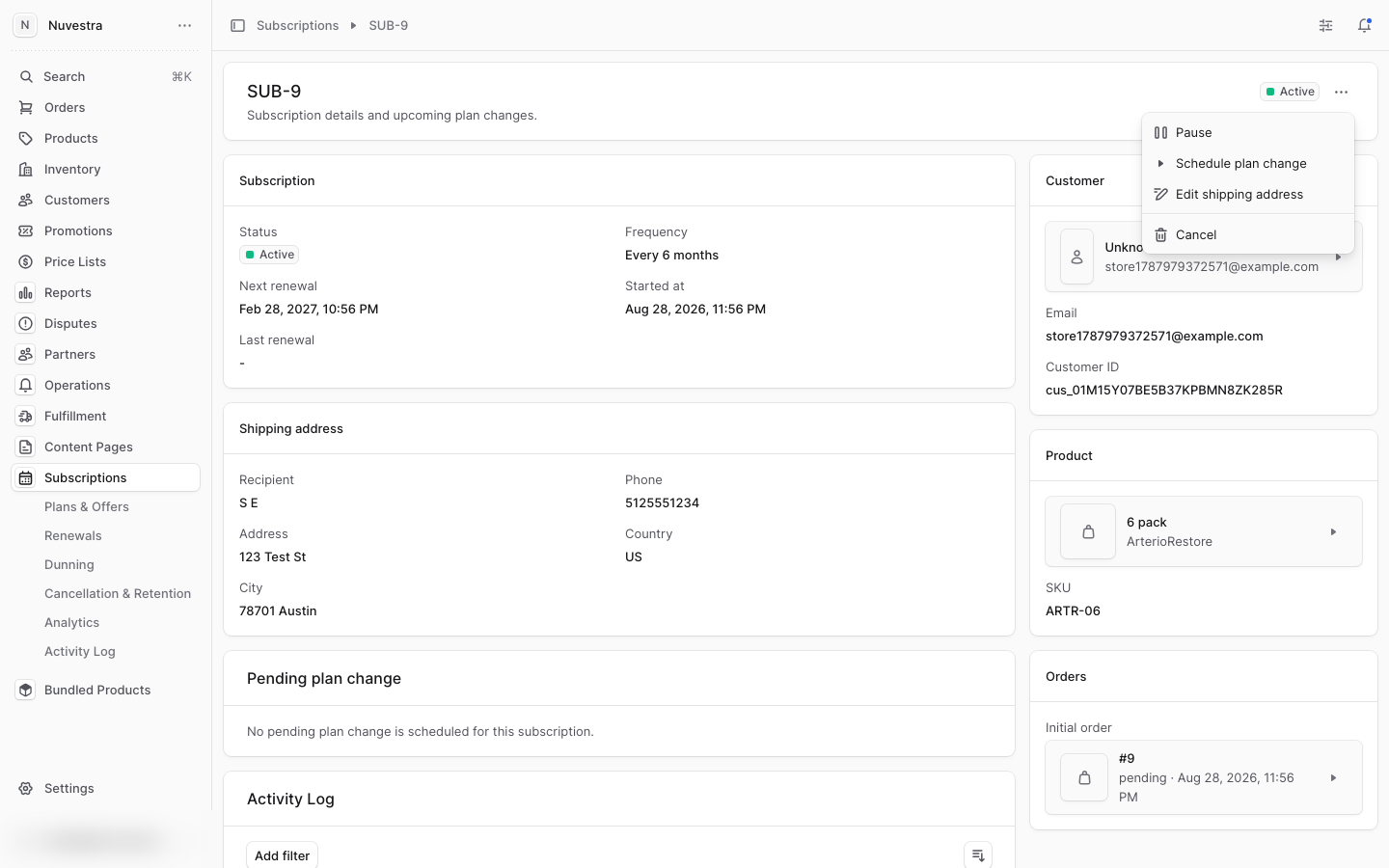
The subscription page shows status, frequency, next renewal, start date, last renewal, shipping address, any Pending plan change, an Activity Log of every action taken (with who took it), and cards linking to the customer, product, and orders.
All actions live in the ⋯ menu at the top right, in four groups:
- Schedule — Schedule plan change, Move next renewal, Skip next cycle
- Pricing — Discount, Quantity
- Delivery — Edit shipping address, Payment method, Pause (or Resume when paused)
- Cancel
Each action opens a drawer that shows the current value above the field you change.
3. Change the plan (frequency or pack size)#
- Open ⋯ → Schedule plan change.
- Pick the variant and frequency. Leave Effective at empty.
- Click Save.
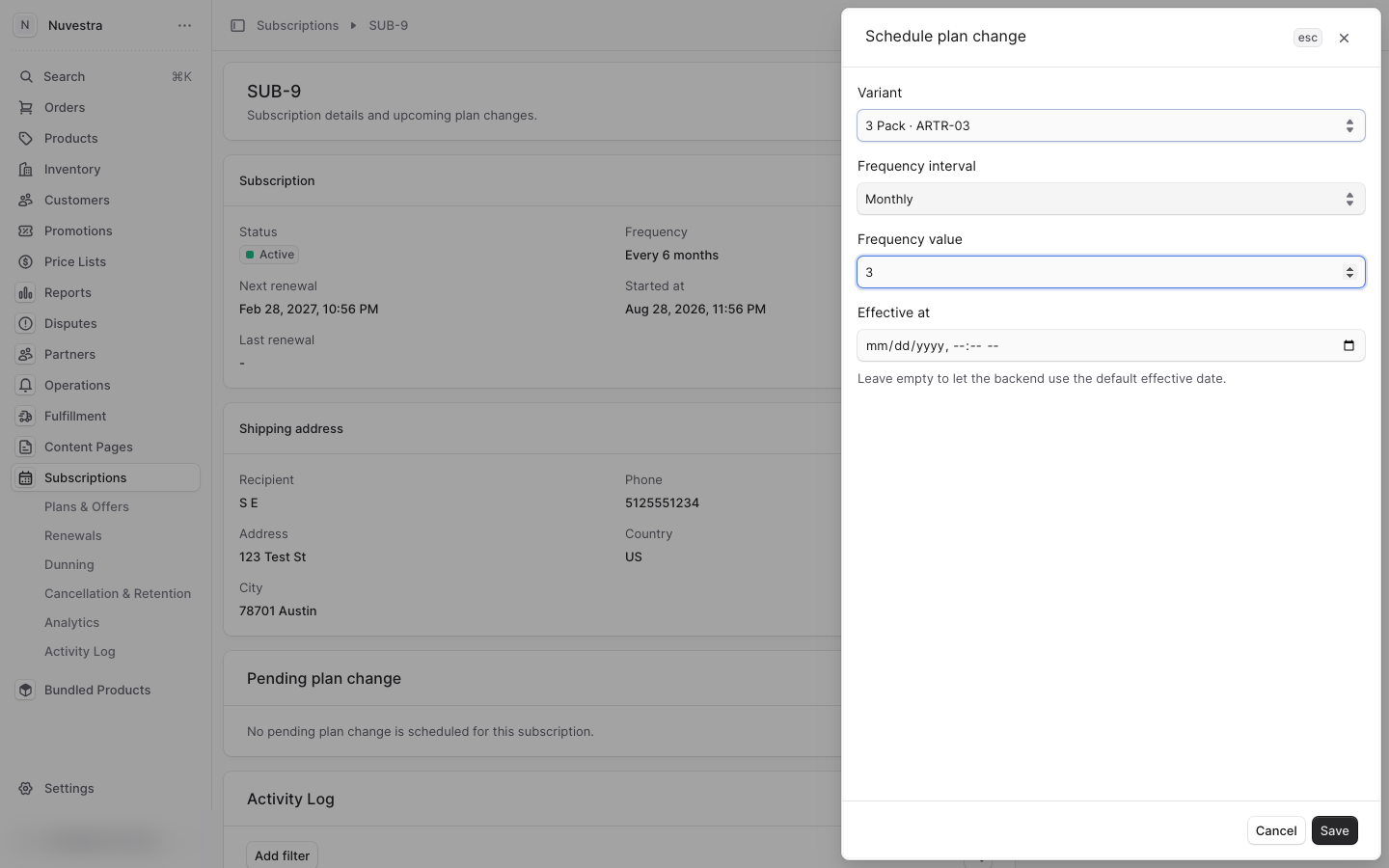
The change takes effect at the next renewal, not immediately. Until then it shows in the Pending plan change card.
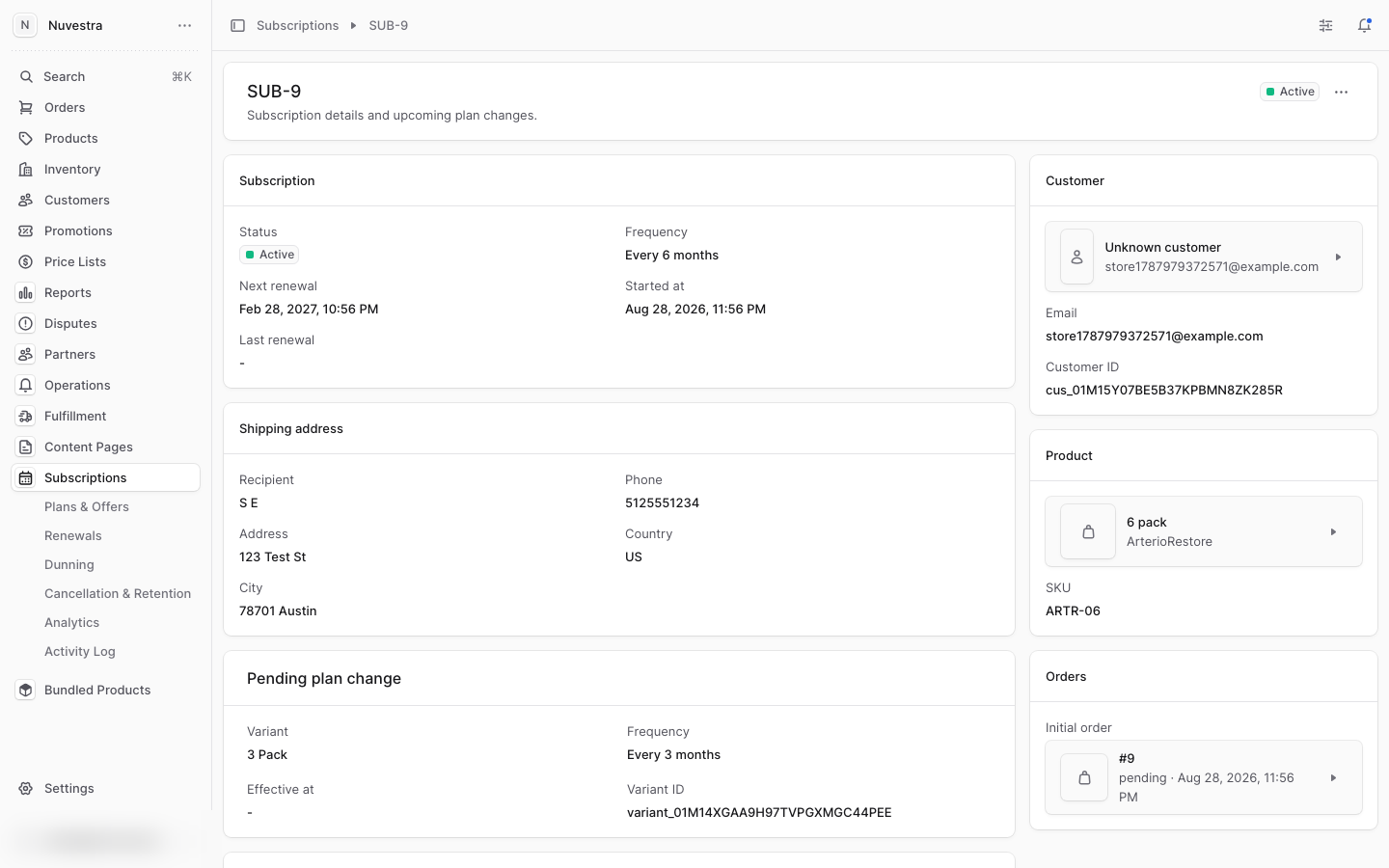
Caveats:
- Each variant allows only the frequencies its plan offer lists (on this store: one per pack size). The dialog does not filter the choices, so a disallowed combination is rejected on Save — change the variant and frequency together.
- The Default renewal behavior setting decides whether a pending plan change holds the renewal at Pending approval. This store holds it. Then nothing charges until an admin approves it. See Renewals and approvals.
- Not built: an immediate frequency change. To move the next charge instead, see Move the next renewal.
3a. Move the next renewal, skip a cycle, or change the quantity#
Move the next renewal
- Open ⋯ → Move next renewal.
- Pick the new date. The drawer shows the current date above the picker.
- Click Move renewal.
The date is a calendar day. The charge runs on that day.
Skip the next cycle
Open ⋯ → Skip next cycle and confirm. The subscription keeps its frequency and skips one charge. The list shows a Skipped mark until the cycle passes. Open the same item again to un-skip it.
Change the quantity
Open ⋯ → Quantity, set the number of units, and click Save quantity. The new quantity bills from the next renewal.
3b. Discount an active subscription#
- Open ⋯ → Discount.
- Pick Percentage or Amount and enter the value. Add a label if you want the customer's order to name the discount.
- Turn on Next renewal only to discount one cycle instead of every cycle.
- Click Save discount.
A recurring discount applies to every renewal until you change it. A next-renewal-only discount applies once, then clears itself.
To remove a discount, clear the value and save.
4. Pause, resume, cancel, and the shipping address#
- Pause: ⋯ → Pause, confirm. Renewals stop.
- Resume: ⋯ → Resume, confirm. The original next-renewal date is kept; if that date already passed during the pause, the renewal runs right away.
- Edit shipping address: ⋯ → Edit shipping address, change the fields, Save. This changes future shipments only — orders that already exist keep their address.
- Cancel: ⋯ → Cancel. Pick a reason, choose when the cancellation takes effect, and confirm.
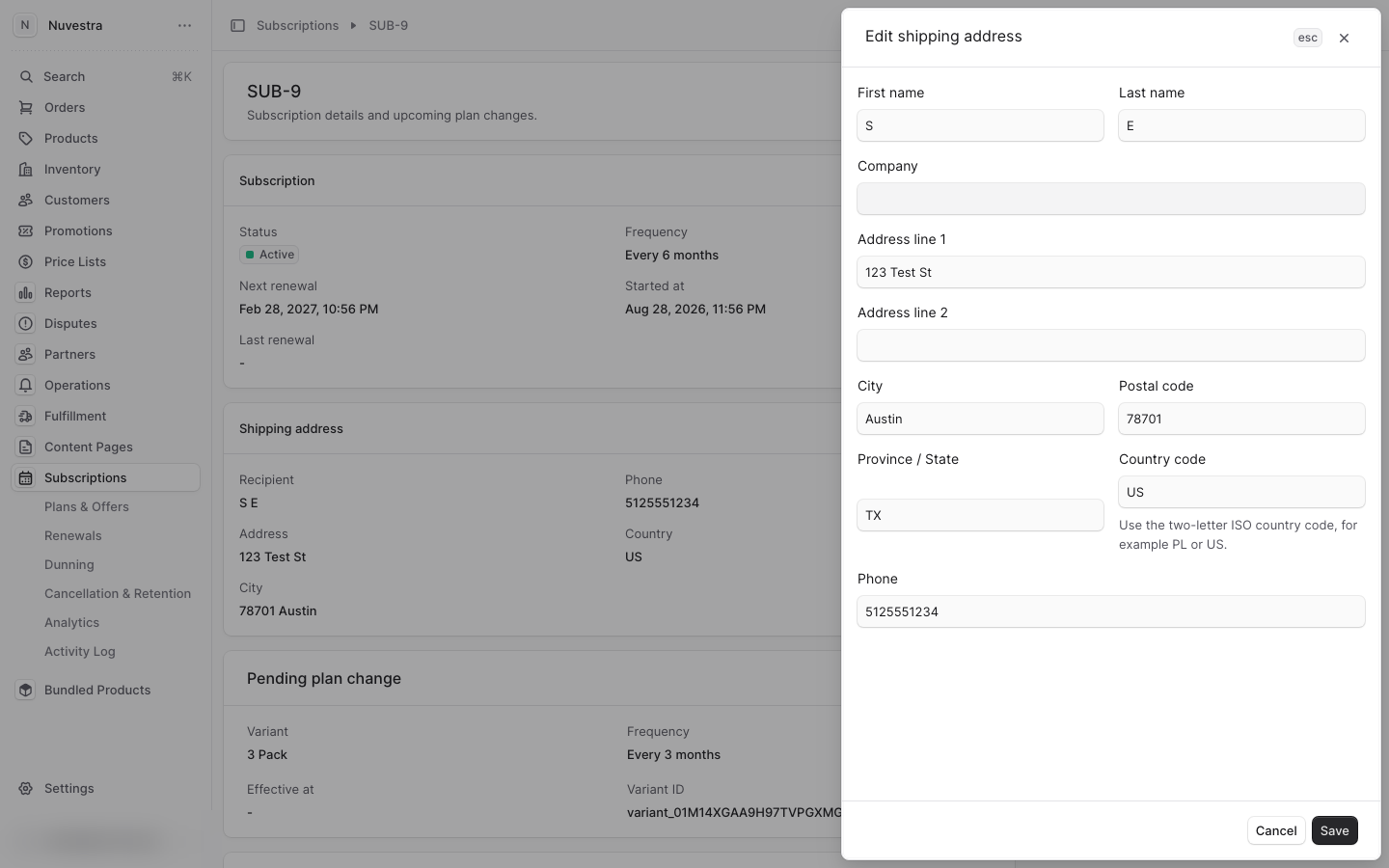
Cancel asks for two things:
- Reason — pick one from the list, and add detail in the text box. The list matches the reasons the storefront cancellation flow uses, so both appear together in churn reporting.
- When — End of cycle keeps the current cycle and stops the renewal. Immediately ends it now.
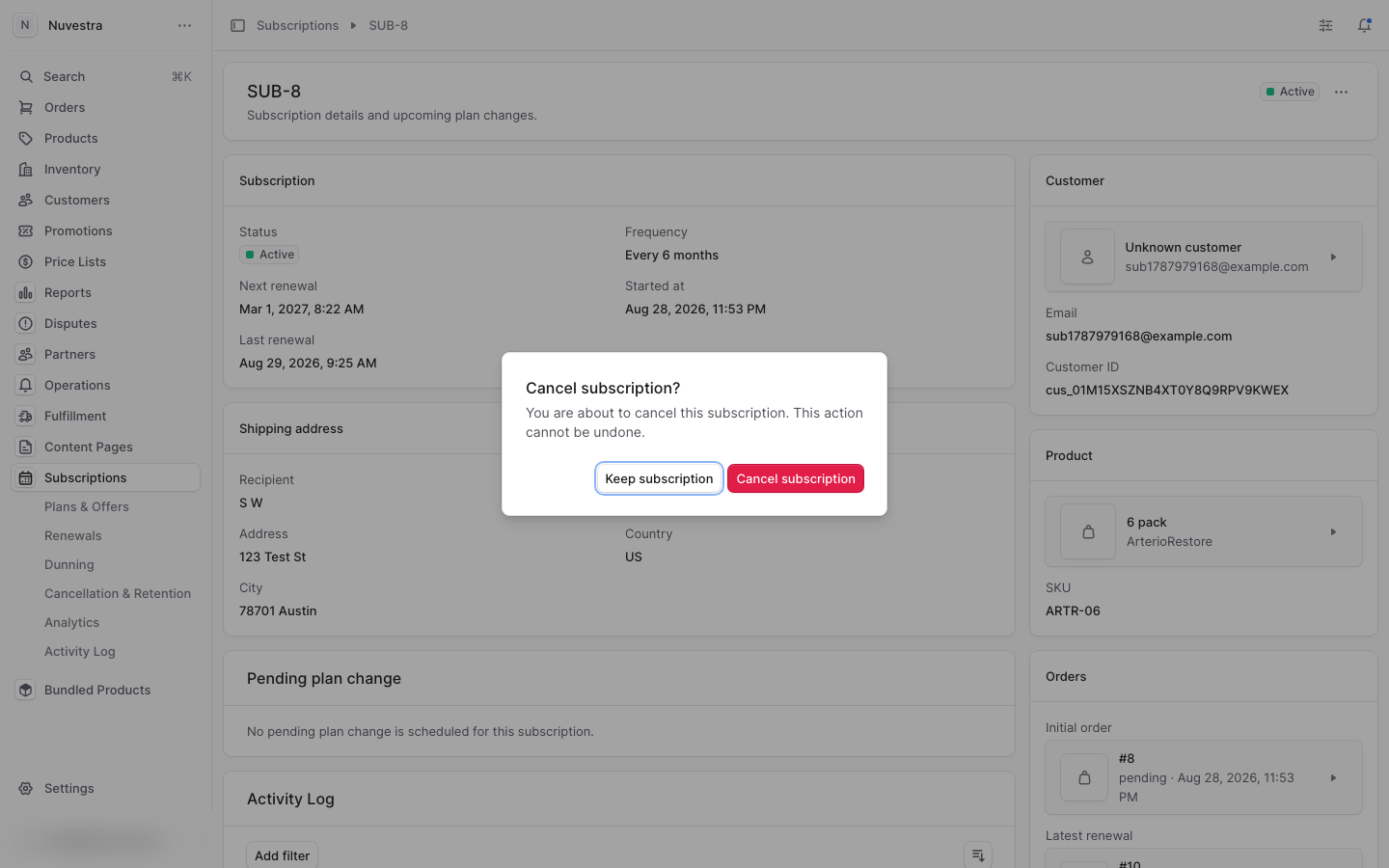
An end-of-cycle cancellation shows as Cancelled — ends <date>. The customer keeps what the current cycle paid for, and no further charge runs. A subscription with no next renewal can only cancel immediately, so the drawer disables End of cycle for it.
Warning: a cancellation is permanent. There is no undo in the dashboard.
5. Renewals and approvals#
Open Subscriptions → Renewals. Each row is one renewal cycle: when it's scheduled, its status (Scheduled / Processing / Succeeded / Failed), and whether it needs approval.
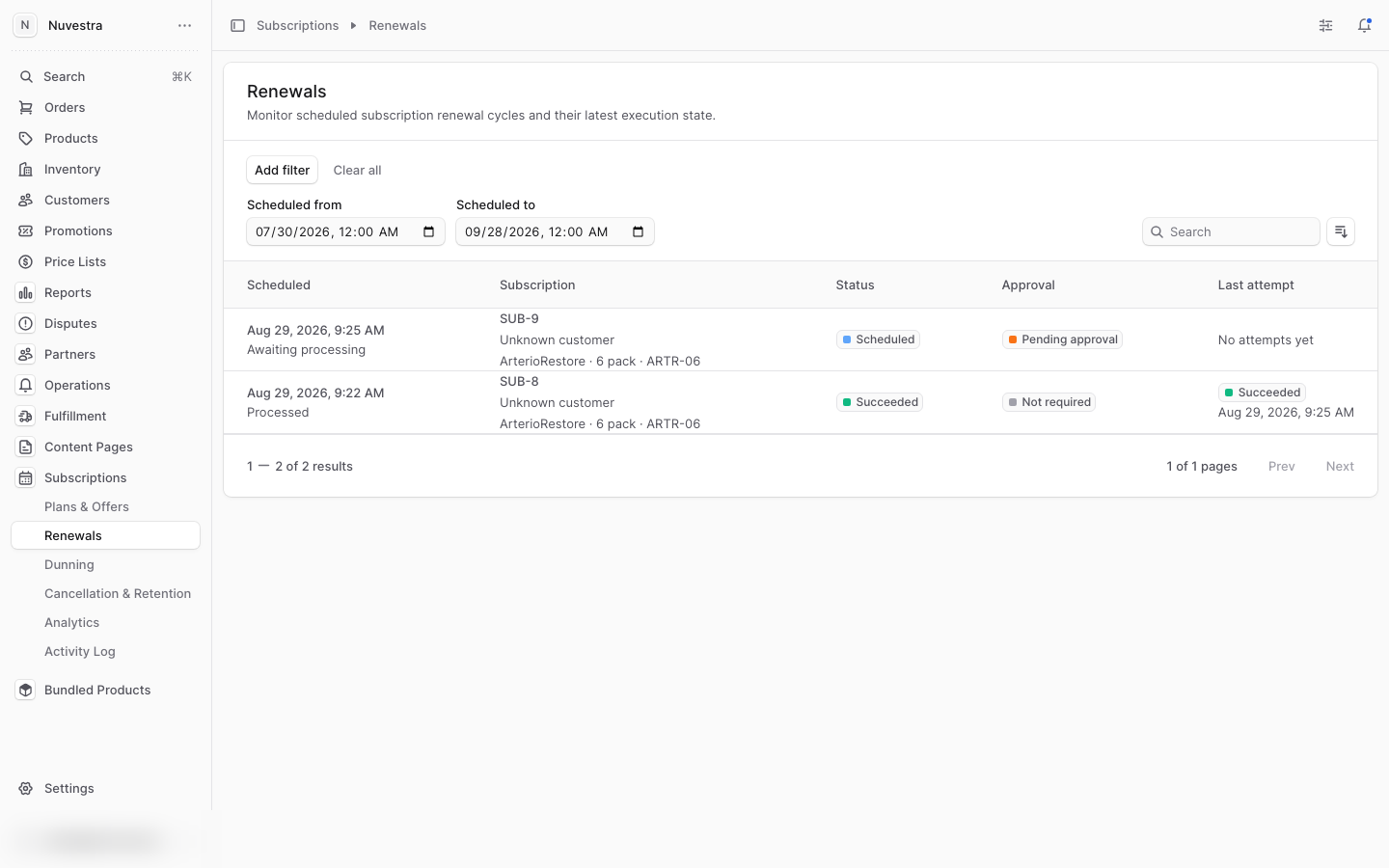
Click a cycle to open it. The ⋯ menu offers Force renewal (run it now), Approve changes, and Reject changes.
Caveats:
- The list filters to a date window (about a month either side of today). A renewal further out is hidden until you widen Scheduled from / to.
- On this store, a cycle with a pending plan change waits at Pending approval — approve it or the customer is never charged. Stores that skip review charge on schedule.
- After clicking Approve, confirm the Approval summary shows Approved — re-open the dialog if it still says pending.
6. Failed payments (dunning)#
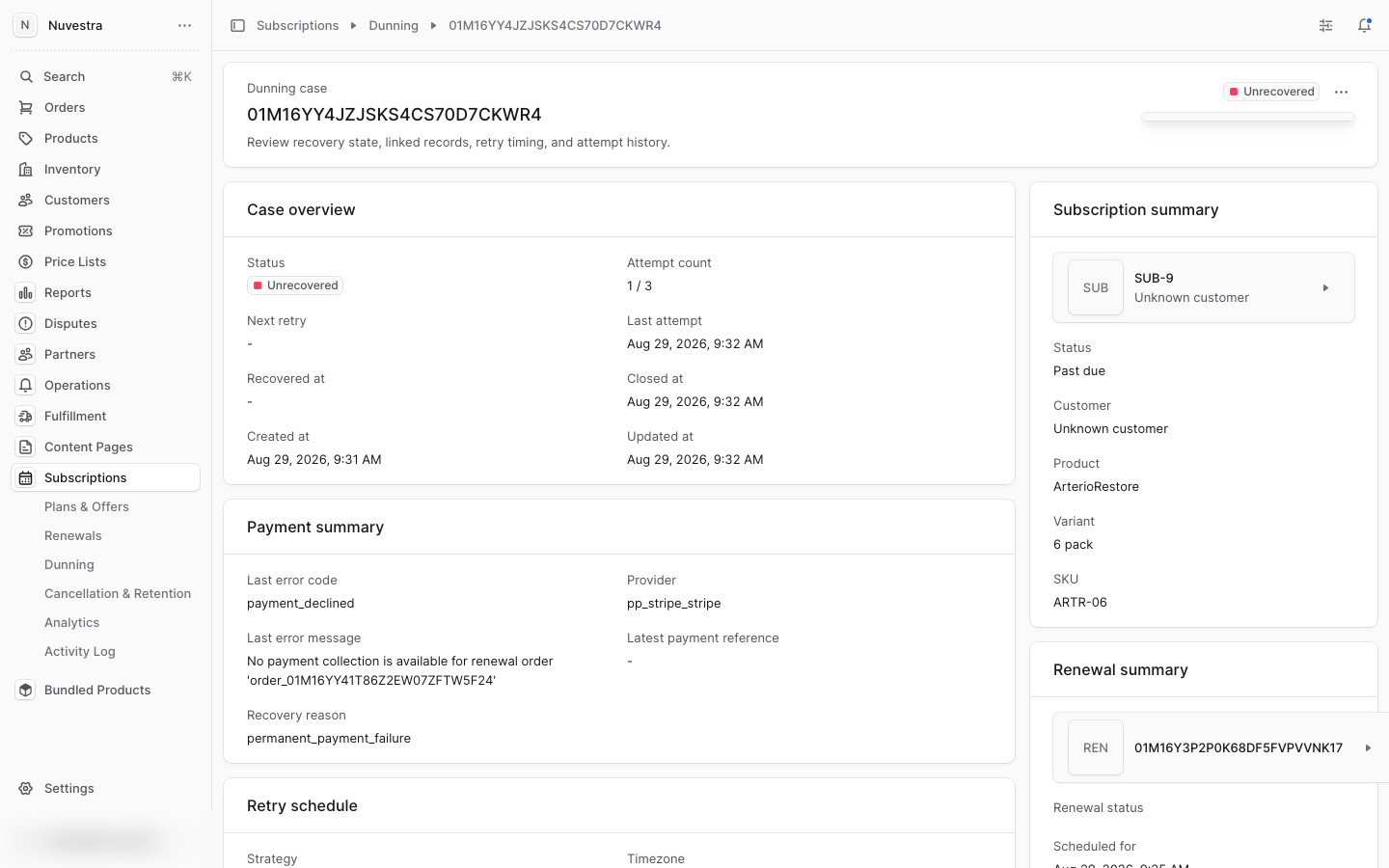
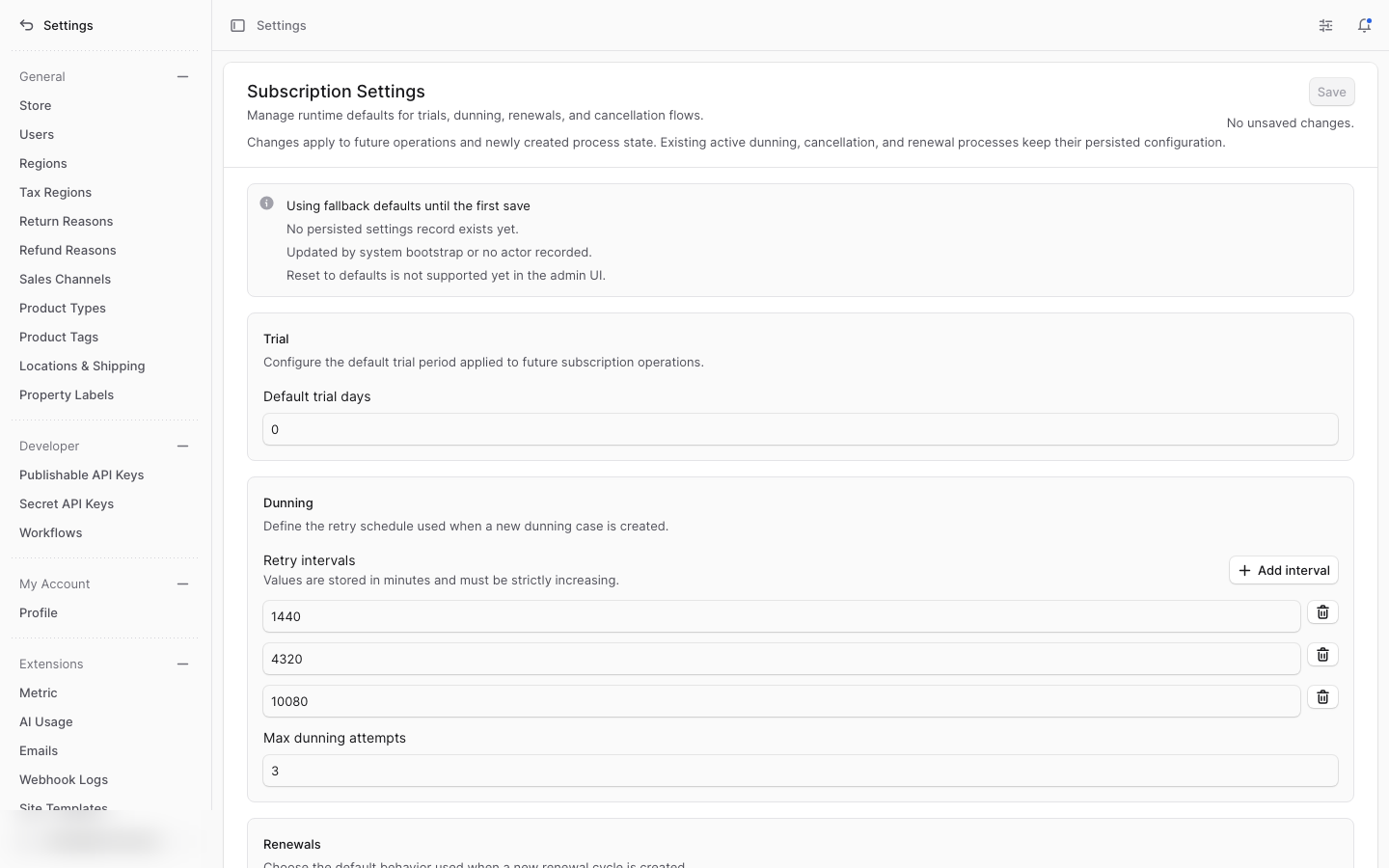
When a renewal charge fails, a case opens under Subscriptions → Dunning and the subscription moves to Past due. The card is retried automatically — by default 1 day, 3 days, then 7 days between attempts. Change the schedule in Settings → Subscription Settings.
Each case shows the retry state, attempt count, and the card error. The ⋯ menu offers Retry now, Mark recovered, Mark unrecovered, and Edit retry schedule.
Caveats:
- A failure classed as permanent — or running out of attempts — closes the case as Unrecovered, and the subscription stays Past due. A closed case offers no further actions.
- To replace a dead card, open the subscription and use ⋯ → Payment method. See Replace the saved card.
6a. Replace the saved card#
- Open the subscription. Click ⋯ → Payment method. The drawer shows the card on file.
- Enter the new card details and click Save card.
The card details go straight to the payment provider. They never reach the dashboard.
If the subscription is Past due, saving a new card retries the open dunning case at once. The toast reports the result.
7. Refund a subscription order#
- Open the order (from the subscription's Orders card or the Orders list).
- In Payments, open the payment's ⋯ menu → Refund.
- Enter the amount — full or partial — pick a reason, add a note, and Save.
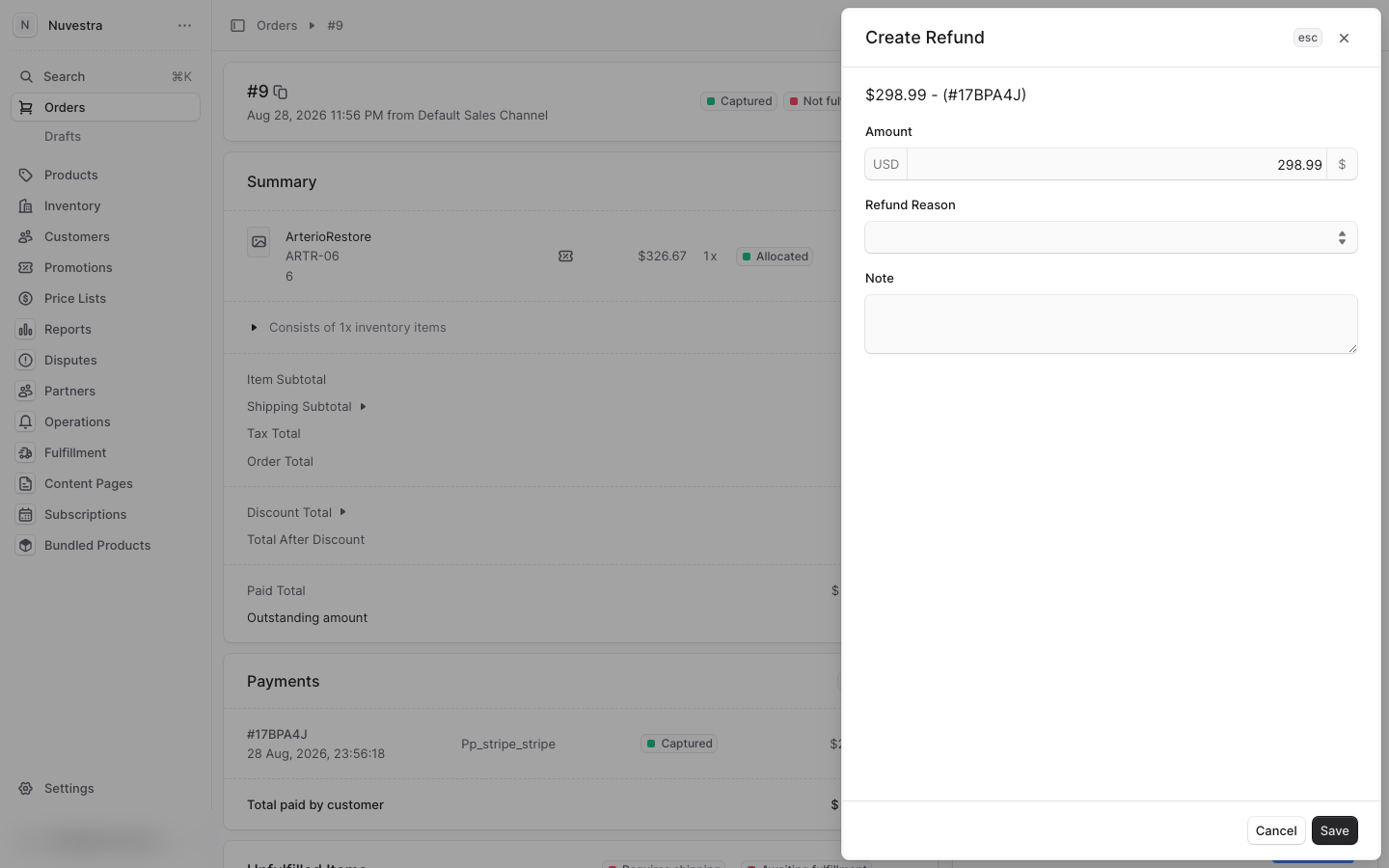
The refund posts to the payment provider immediately. The order shows the refund line, the updated paid total, and a timeline entry with your name, and the customer gets a refund email automatically.
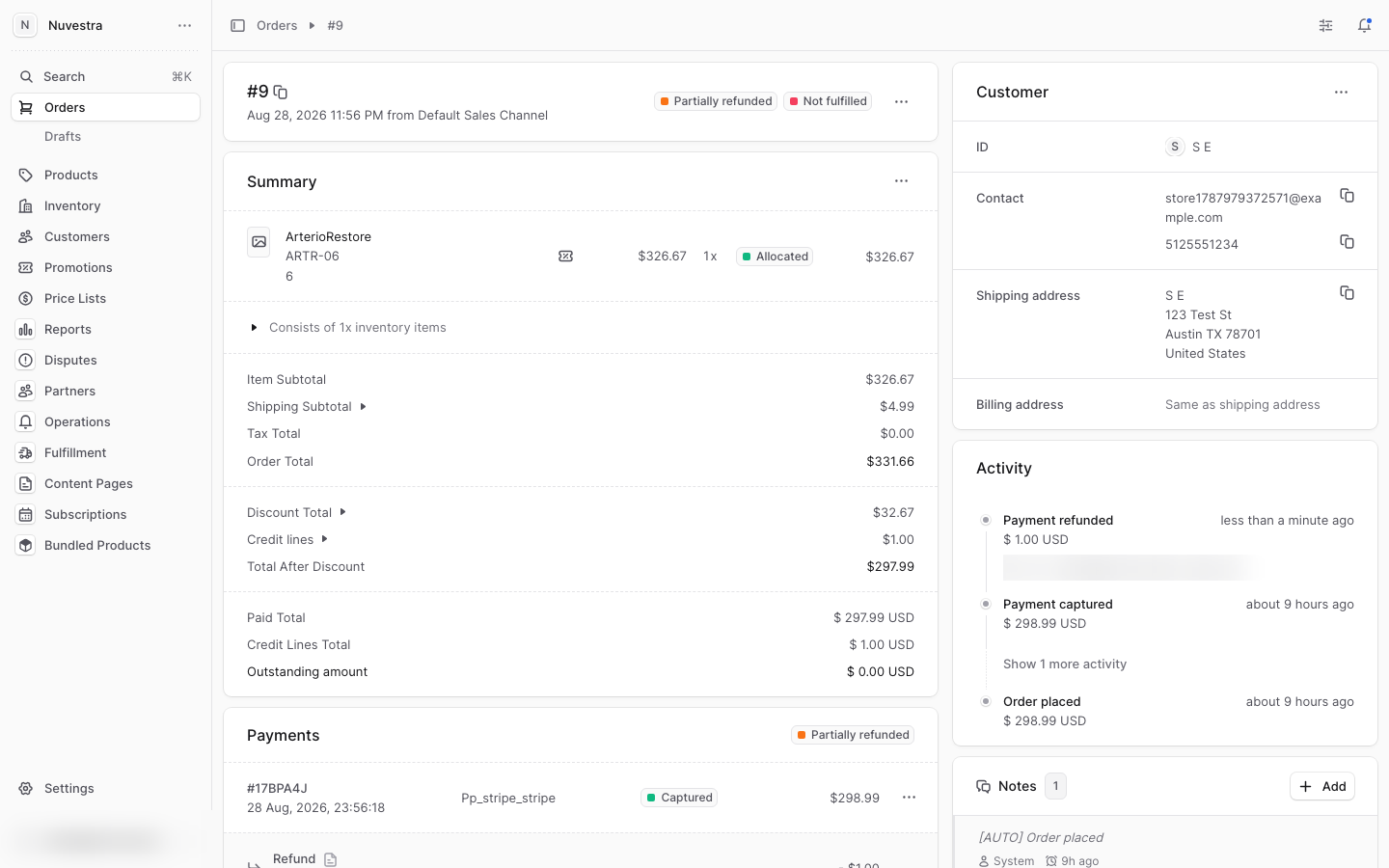
Caution: always refund here, not in the payment provider's own dashboard. The order's Sync Stripe action reports a provider-side refund. It does not add that refund to the order's totals.
8. Ship and track#
- On the order, click Mark as shipped in the fulfillment card.
- Click Add tracking number; enter the tracking number and the carrier's tracking URL.
- Save. The tracking number becomes a clickable link, and the shipped email (with tracking) becomes available under Email Notifications.
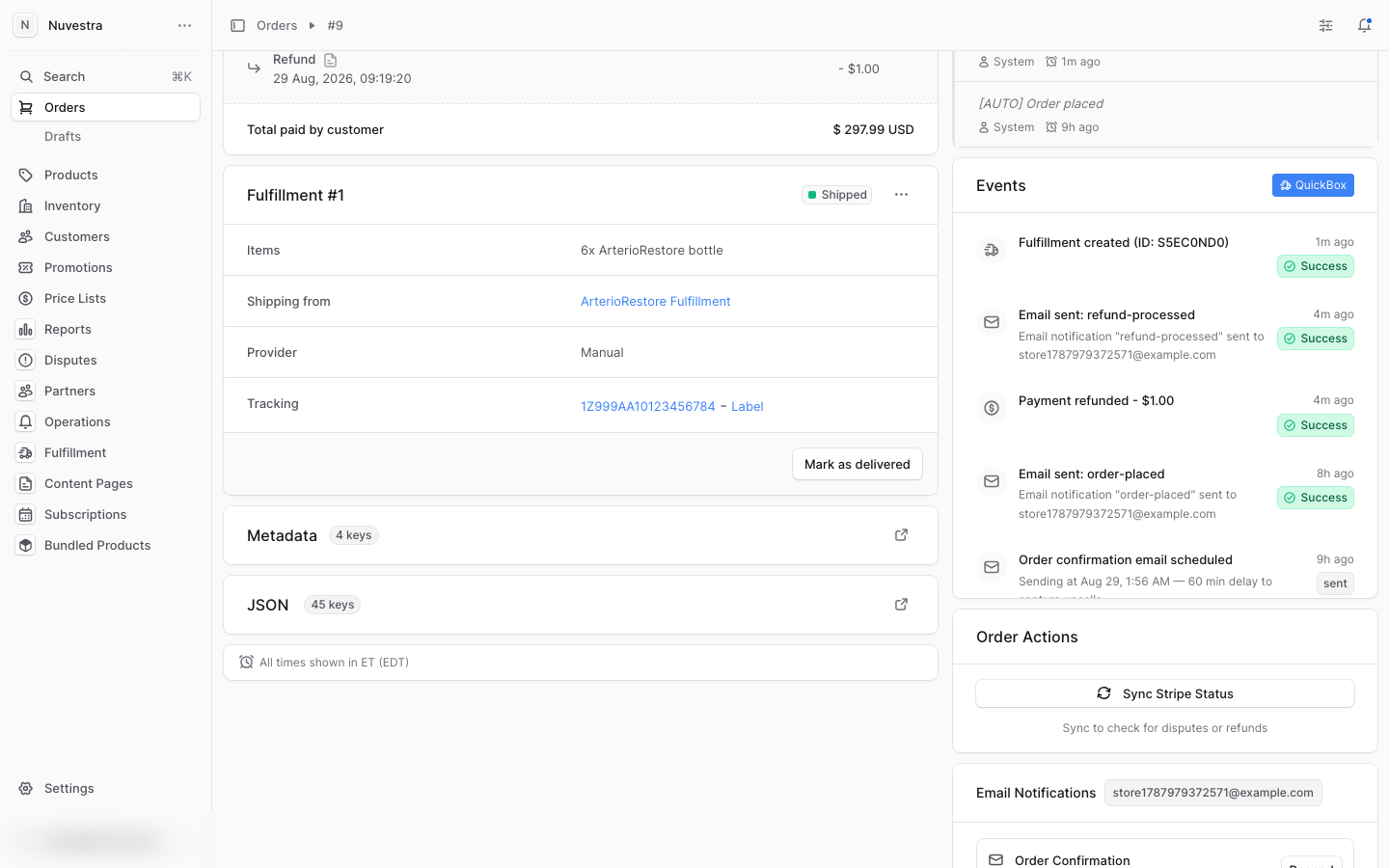
Note: the link is the URL you enter — the dashboard does not build a carrier link from the number alone.
9. Notes#
On any order, the Notes card takes tagged notes (Called, Email, Issue, Shipping, Refund) with author and time. System notes (order placed, fulfillment created) appear automatically.
The customer page carries the same Notes card, with the same tags, author and time. Use it for anything about the person rather than one order.
Not built: notes on the subscription itself. Put those on the customer or on the most relevant order.
10. Offers and settings#
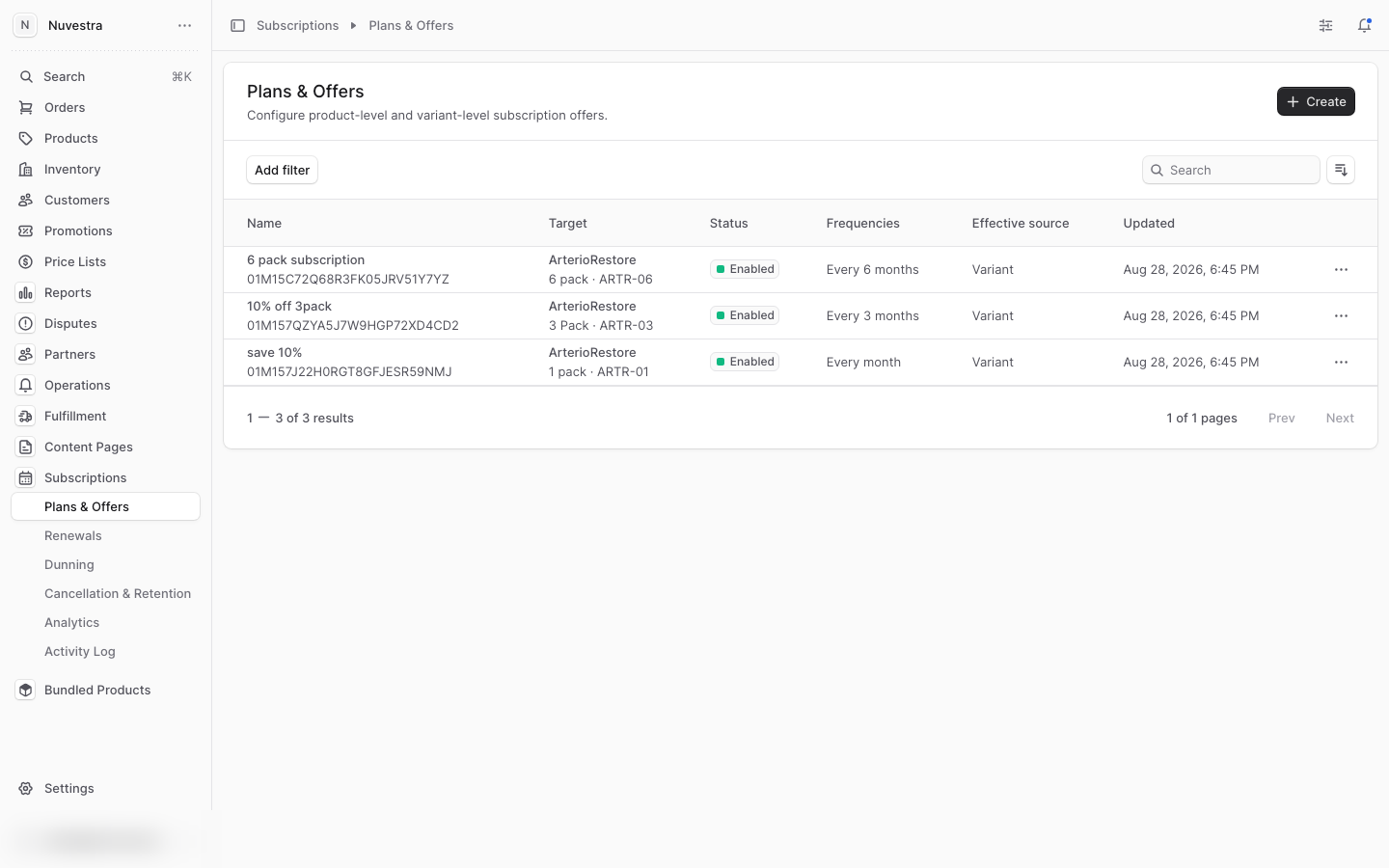
- Subscriptions → Plans & Offers defines the subscribe-and-save offers: which variant, which frequency, what discount. These apply when the customer subscribes.
- Settings → Subscription Settings holds the defaults: trial days, dunning retry intervals and attempt limit, renewal and cancellation behavior. Changes apply to future cases only.
Current limitations#
Not available in the dashboard today. Work around them as described, or escalate.
| You want to… | Today |
|---|---|
| Change frequency immediately | Only through a scheduled plan change, which lands at the next renewal. |
| Offer a save before a cancellation | The drawer captures a reason. It offers no retention step. |
| See subscriptions on the customer page | Search the Subscriptions list instead. |
| Add a note to a subscription | Notes attach to orders and customers. |
Quick reference#
| Task | Where | Steps |
|---|---|---|
| Find a subscription | Subscriptions | Search or filter, click the row |
| Change frequency / pack size | Subscription → ⋯ | Schedule plan change → variant + frequency → Save (lands next renewal) |
| Move the next charge | Subscription → ⋯ | Move next renewal → pick a date → Move renewal |
| Skip one cycle | Subscription → ⋯ | Skip next cycle, confirm |
| Change the quantity | Subscription → ⋯ | Quantity → set units → Save quantity |
| Discount a subscription | Subscription → ⋯ | Discount → type + value → Save discount |
| Pause / resume | Subscription → ⋯ | Pause or Resume, confirm |
| Change shipping address | Subscription → ⋯ | Edit shipping address → Save |
| Replace the saved card | Subscription → ⋯ | Payment method → new card → Save card |
| Cancel | Subscription → ⋯ | Cancel → reason + when → confirm |
| Approve a plan change | Subscriptions → Renewals | Open cycle → ⋯ → Approve changes |
| Run a renewal now | Subscriptions → Renewals | Open cycle → ⋯ → Force renewal |
| Work a failed payment | Subscriptions → Dunning | Open case → ⋯ → Retry now / Mark recovered / Edit retry schedule |
| Refund an order | Order → Payments → ⋯ | Refund → amount + reason → Save |
| Ship with tracking | Order → fulfillment card | Mark as shipped → Add tracking number + URL → Save |
| Add a note | Order or Customer → Notes | Add → tag + text → Save Note |
| See every past action | Subscriptions → Activity Log | Filter by subscription, date, or event |